Stock Central Columns Data
In the Stock Central table, you will find detailed info about your products. The info is sorted within the following sections:
PRODUCT DETAILS
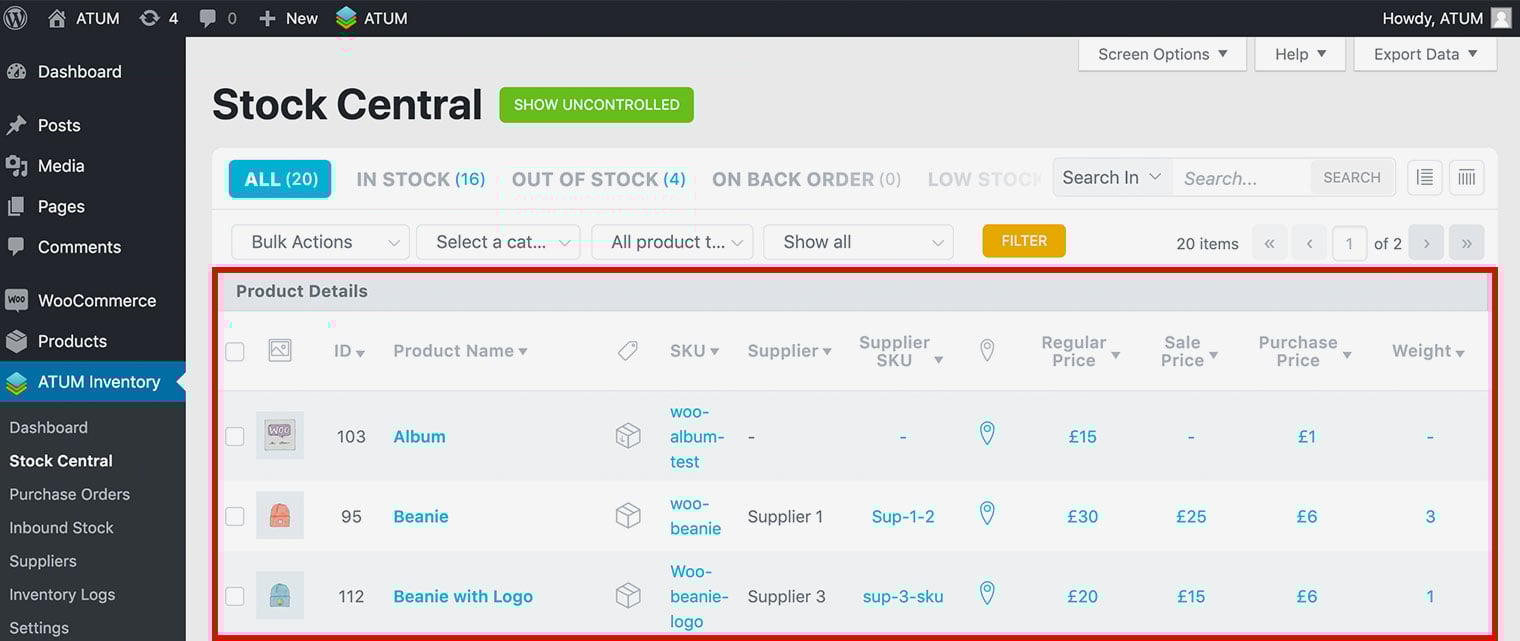
This section contains:
- Image: Product small image preview.
- ID: A WooCommerce Product ID is sometimes needed when using shortcodes, widgets and links. ATUM’s stock central page will display the appropriate ID of the product in this column.
- Product Name: The first twenty characters of the product name. Hover your mouse over the name to see the full content.
- Product type: This column displays the classification of individual products in WooCommerce. We specify product types by icons with a tooltip on hover.
- SKU: An SKU, or Stock Keeping Unit, is a code assigned to a product by the store admin to identify the price, product options and manufacturer of the merchandise. An SKU is used to track inventory in your retail store. They are critical in helping you maintain a profitable retail business. We recommend the introduction of SKUs in your store to take the full advantage of ATUM’s features. You can set the SKU in this column. After you click the ‘Set’ button and ‘Save Data’, the SKU will update automatically in your store.
- Supplier: This is the name of the suppliers that suppliers the products for your store.
- Supplier SKU: The stock keeping unit code of the product within your supplier’s product list. You can set the Supplier SKU in this column. After you click the ‘Set’ button and ‘Save Data’, the Supplier SKU will update automatically in your store.
- Location: Shows the product’s Location hierarchy. Grey icon means that there are no locations set and blue icon means that there. Click the icon to view and manage the locations hierarchy in a popup.
- Regular Price: You can configure the product price in this column. After you click the ‘Set’ button and ‘Save Data’, the product price will update automatically in your store.
- Sale Price: You can configure the sale price of your product. Enter the date range for your sale or leave the date empty for a continuous sale price. After clicking the ‘Set’ button and ‘Save Data’, the change will automatically update in your store.
- Purchase Price: You can configure the purchase price of the product. After you click the ‘Set’ button and ‘Save Data’, the product purchase price will update automatically in your store.
- Weight: You can configure the product weight in this column. After you click the ‘Set’ button and ‘Save Data’, the product weight will update automatically in your store.
STOCK COUNTERS
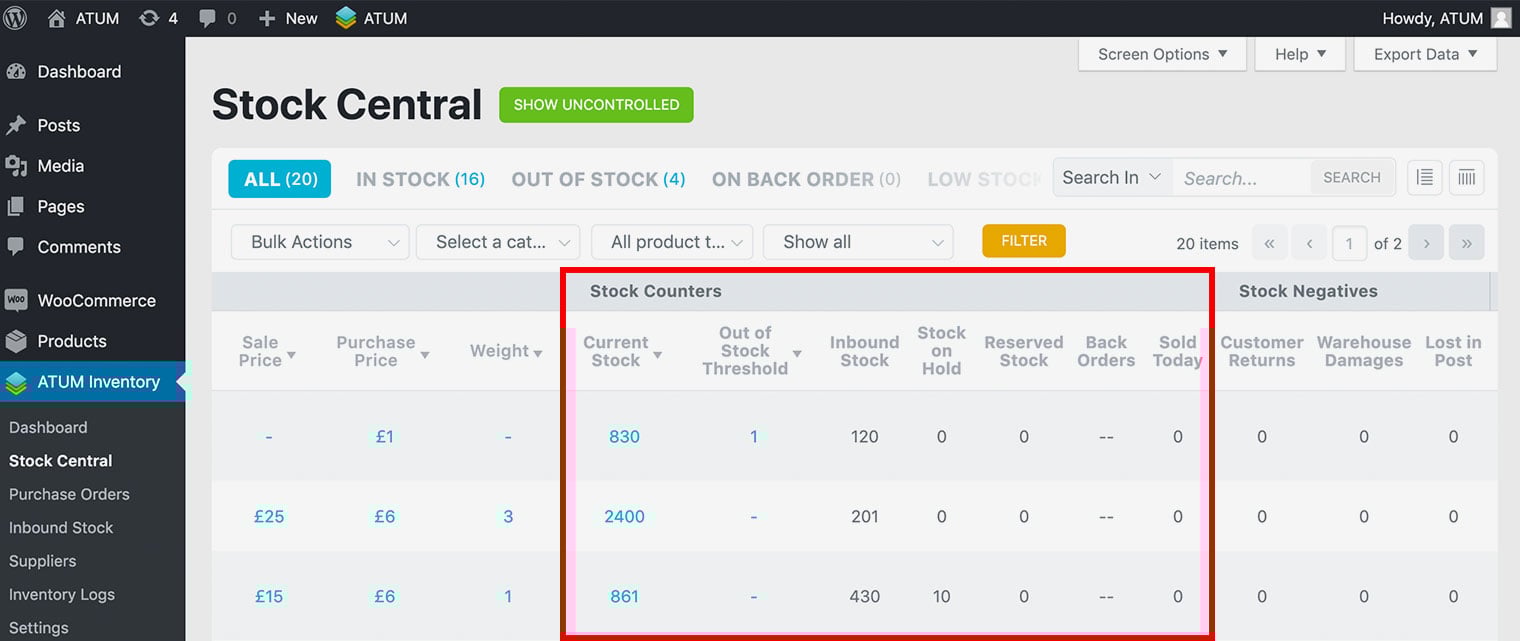
This section contains:
- Current Stock: The current stock represents the number of products available to order (values update on the Stock Central refresh). If the WC’s manage stock option is enabled, you can set the current stock in this column. After you click the ‘Set’ button and ‘Save Data’, the current stock will update automatically in your store.
- Out of stock threshold: When stock quantity reaches the Out of Stock Threshold the stock status will change to ‘Out of Stock’. You can set the Out of Stock Threshold in this column. After you click the ‘Set’ button and ‘Save Data’, the Out of Stock Threshold will update automatically in your store.
- Inbound Stock: Inbound stock counter represents the volume of products that have been ordered in, using the Purchase Order feature and are pending delivery.
- Stock on Hold: The ‘Stock on Hold’ value is an important indicator for stores that allow customers to add items to their baskets and leave them there unattended for a while. Products left in baskets are still physically in the warehouse, but not included in the ‘Current Stock’ indicator. You can set the time of the product being held by a customer under ‘WooCommerce’ – ‘Settings’ – ‘Products’ and the ‘Inventory’ tab.
- Reserved Stock: There are times when the store owner needs to reserve or set aside a small or significant amount of stock. Occasions like special events, customer reservations or quality checks will find this feature very handy. Inventory Logs add-on can automatically deduct the reserved stock value from the ‘Current Stock’ indicator.
- Back Orders: Every WooCommerce product has an ‘Allow Back Orders’ option within the product page. It will give customers the opportunity to place an order even when the product is out of stock. The ‘Back Orders’ indicator will display the amount of items required by customers.
- Sold today: The value represents the number of products sold during the day. Sold products are items included in ‘completed’ and ‘processing’ orders only. Ordered items, but pending payment will show in the ‘Stock on Hold’ column instead.
STOCK NEGATIVES
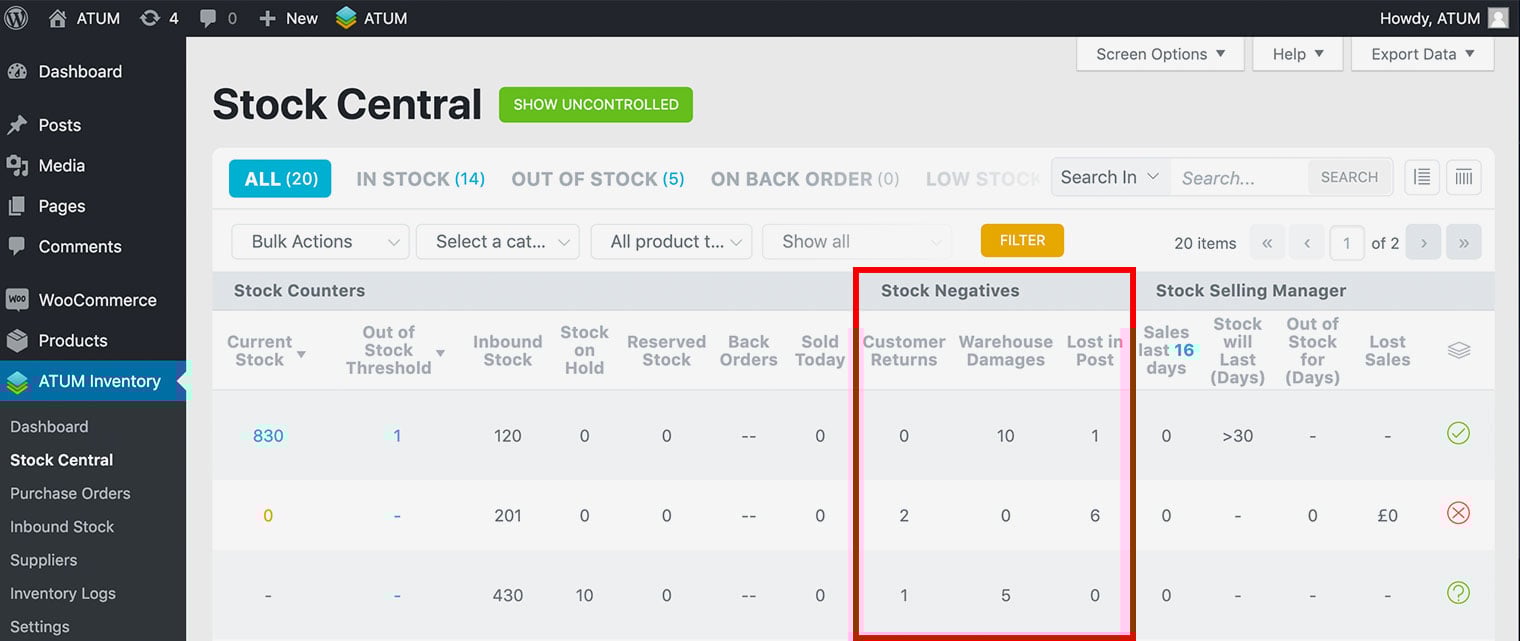
This section contains:
- Customer Returns: We don’t think there is a store owner that wants to see products returning to the warehouse. However, in case there is an item coming back from the customer store owner can use the Inventory Logs add-on to create a log entry in the ‘Customer Returns’ tab within the ‘Inventory Log’ menu. Depending on the item condition, the ATUM plugin will then add the item back in for further sale or create an ‘Unsellable Return’ entry.
- Warehouse Damages: In the unlikely event of a warehouse or in-house damages, the Inventory Logs add-on have the option to create an entry under the ‘Warehouse Damages’ tab within the ‘Inventory Log’ menu. The ATUM plugin will, per the log, remove the damaged stock from the product’s stock value.
- Lost in Post: Inventory Logs add-on can create a log entry under the ‘Lost in Post’ tab within the ‘Inventory Log’ menu for all items that have gone missing on the route to the customer. This indicator helps to control the performance of postal carriers as well as the work of dispatch departments.
STOCK SELLING MANAGER
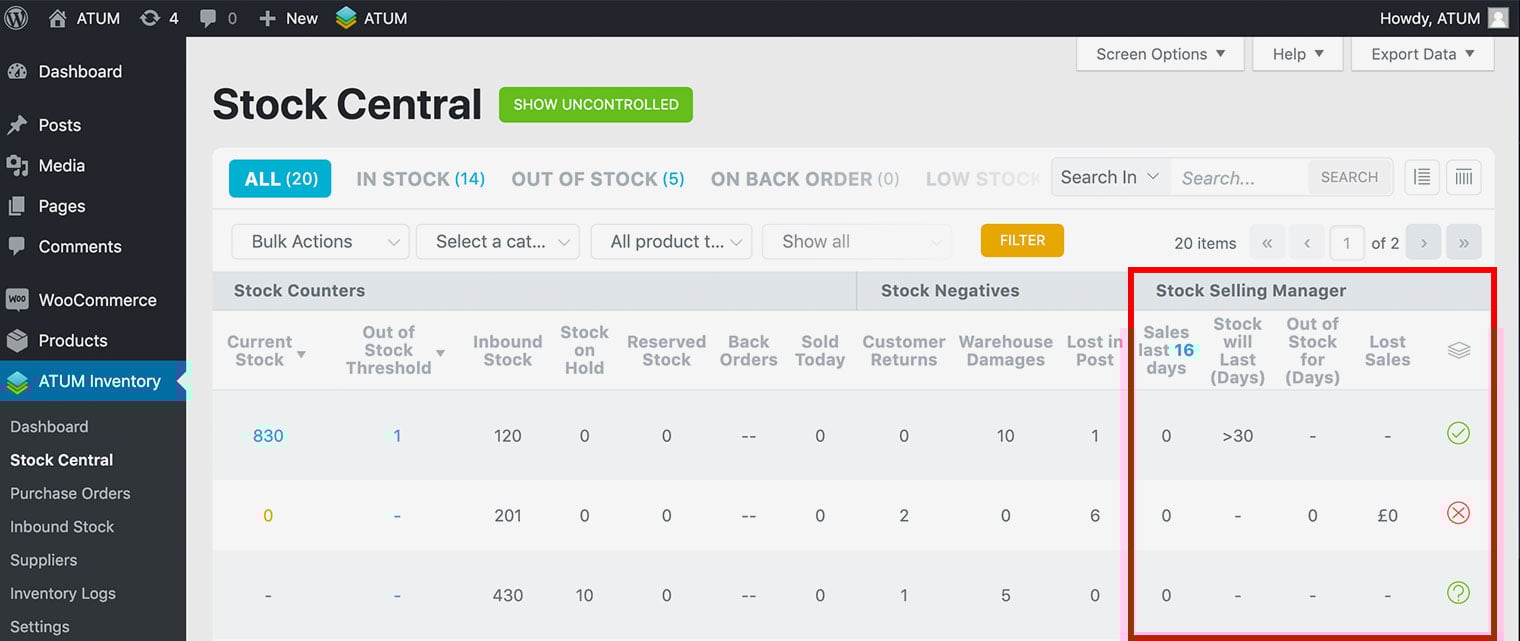
This section contains:
- Sales Last X Days: Users will value this performance indicator as a tool that allows them to see the actual sales of the product within the last X days (sold products are items included in ‘completed’ and ‘processing’ orders only. Ordered items, but pending payment will show in the ‘Stock on Hold’ column instead). You can change the number of the days by simply clicking on its blue number.
- Stock will Last (Days): A feature that will tell the user the average amount of days that a product will keep ‘in stock’ status. By default, we base this indicator on sales for the past seven days (We do not include the current day sales).
- Out of Stock for (Days): This indicator shows the number of days an item has the ‘Out of Stock’ status. Store owners can more accurately monitor the effectiveness of their ordering. Please, note, ATUM will only calculate products that go out of stock after the initial plugin install.
- Lost Sales: Our users will want to see this figure as close to zero as possible. The formula calculates the volume of products that store owner would sell if the item stayed in stock. By default, we take the average sales for the last seven days the item was in stock. We time the result by the number of days the item is out of stock.
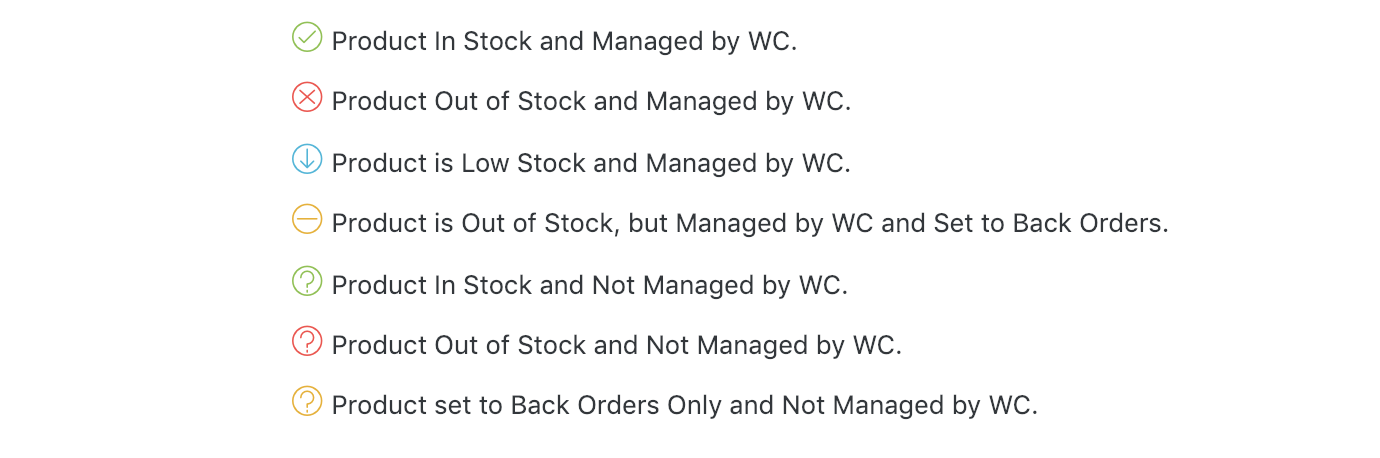
- Stock Indicator: The product’s stock status, and could be: