Filtering Data in Stock Central
You can filter and sort the products that appear in Stock Central.
FILTERING BY STOCK TYPE
You can filter by stock type, including In Stock, Out of stock, on Back Order, Low Stock or Unmanaged by WC.
To filter by stock type, click the stock type link. Stock Central automatically refreshes and displays the products with that stock type.
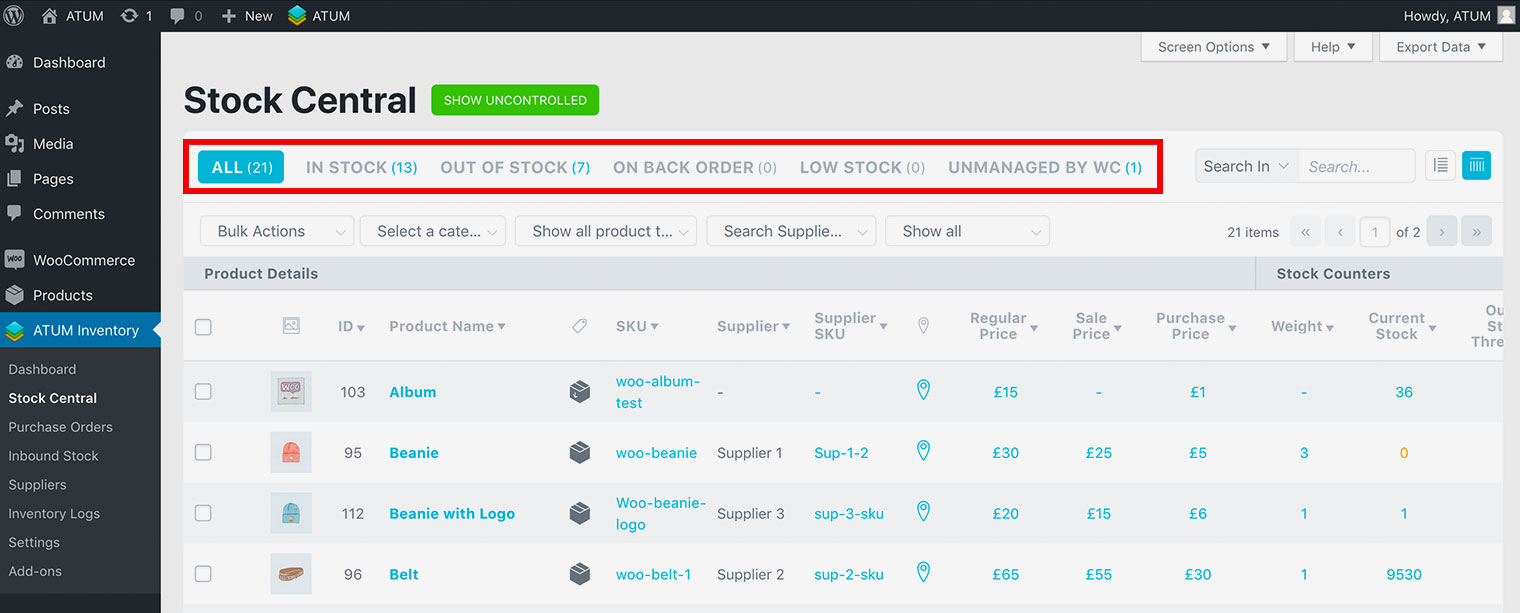
NOTE:The currently selected stock type appears in blue background, while the other options appear in grey. The number in parentheses indicates the number of products for that specific type. For example, “In Stock (28)” means that you have 28 products that are currently in stock.
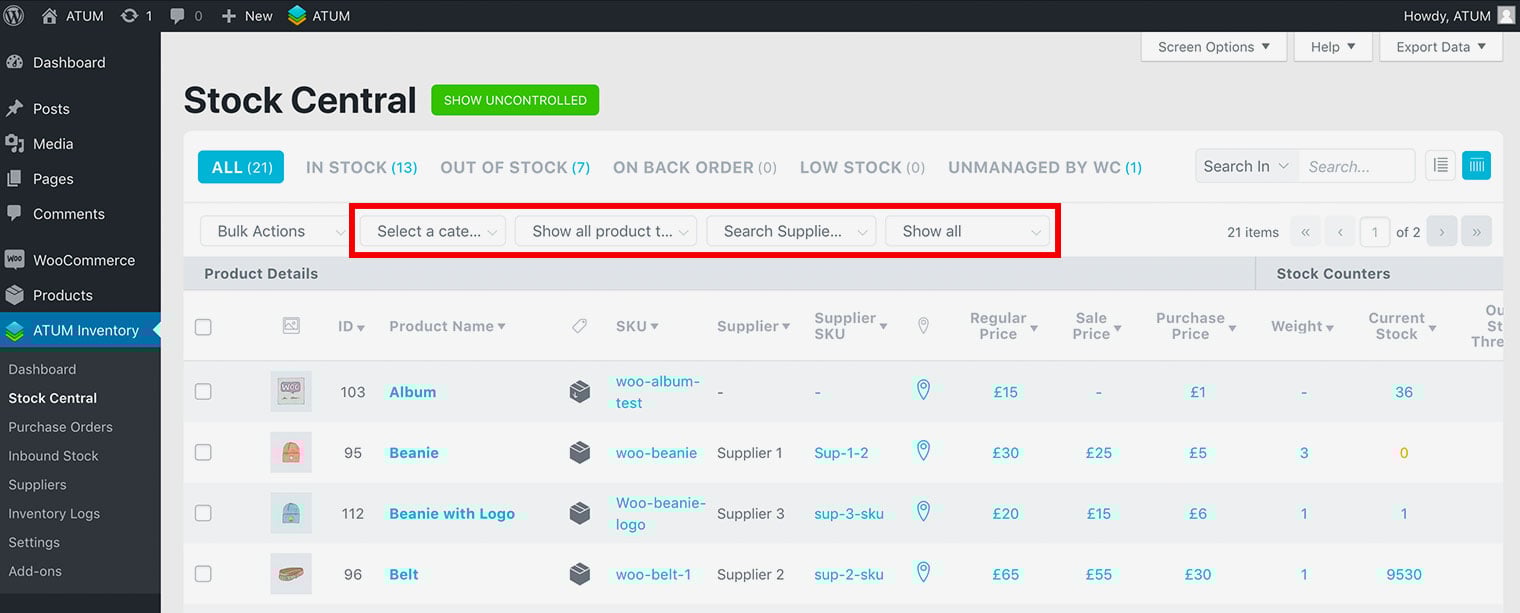
FILTERING BY CATEGORY, PRODUCT TYPE, SUPPLIER AND STOCK TYPE.
You can also filter products by category, product type, supplier and stock type.
Use the menus to select a specific category, product type, supplier and/or stock type. Stock Central automatically refreshes and displays the products that meet the sorting criteria.
NOTE:That the numbers in the stock filters also change to reflect the sorting criteria as well.