
Adding a New Supplier
It’s easy to add a new supplier in ATUM.
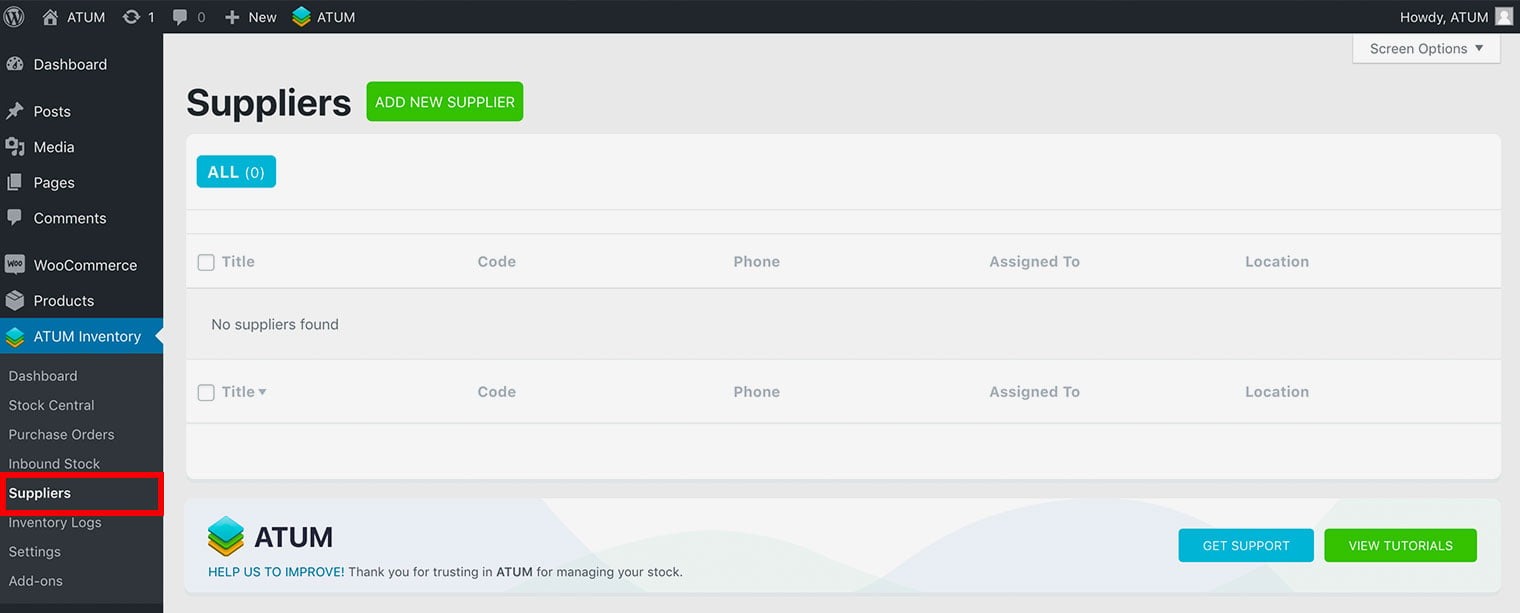
- In WordPress, go to ATUM Inventory > Suppliers.
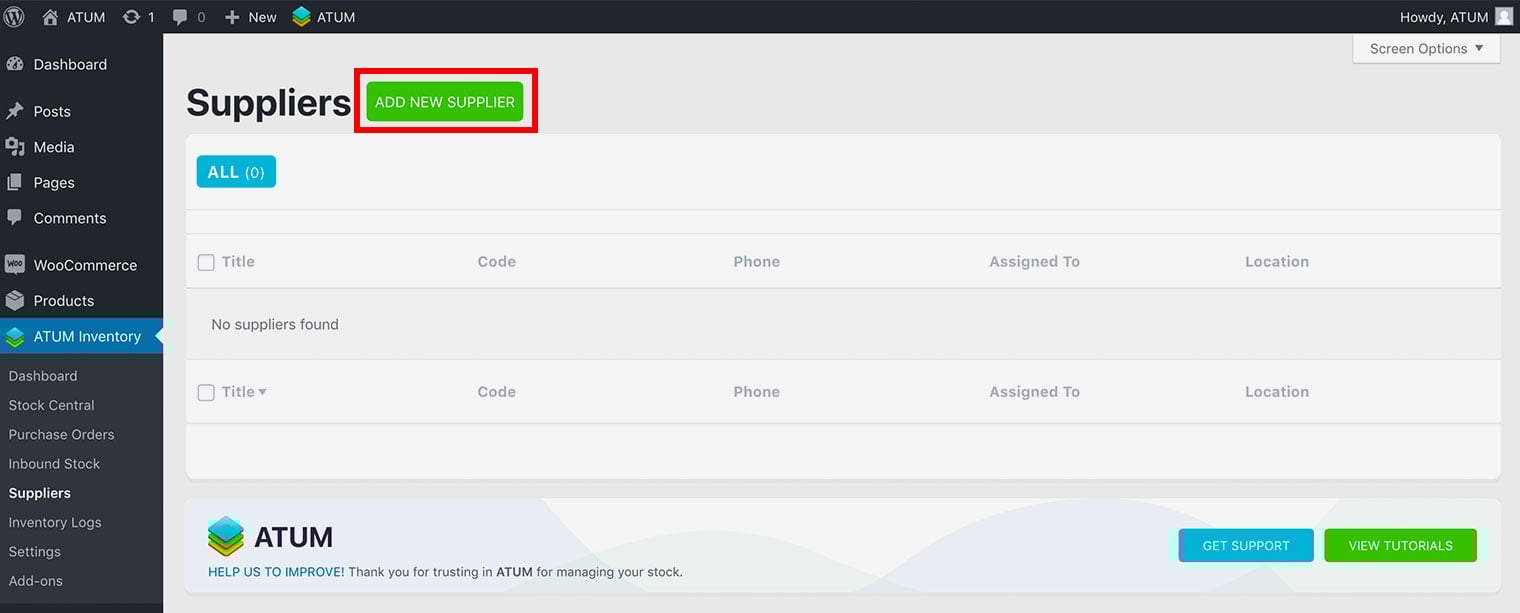
- Click Add New Supplier.
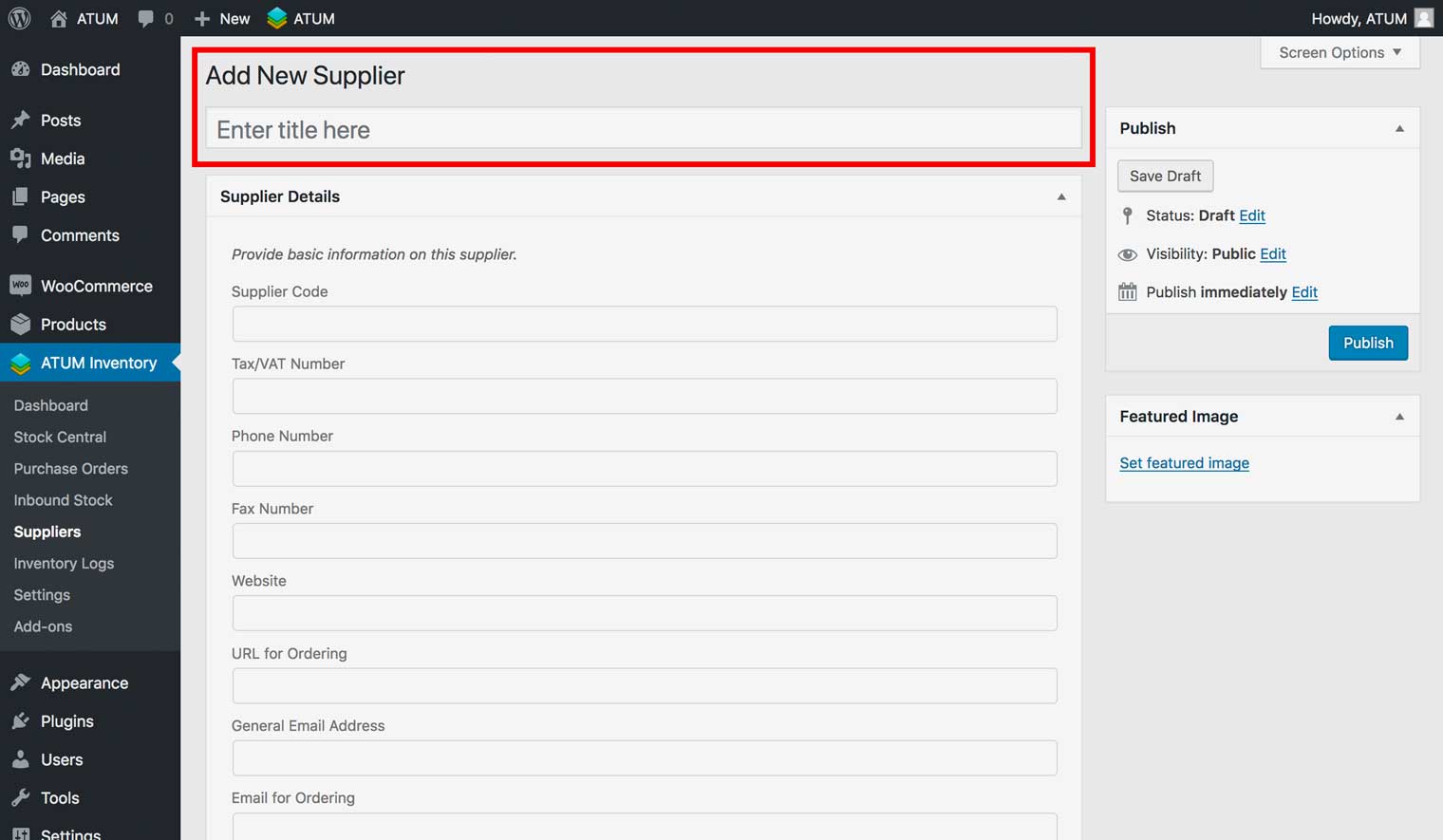
- Enter the supplier title.
- Enter details for the supplier in the Supplier Details section:
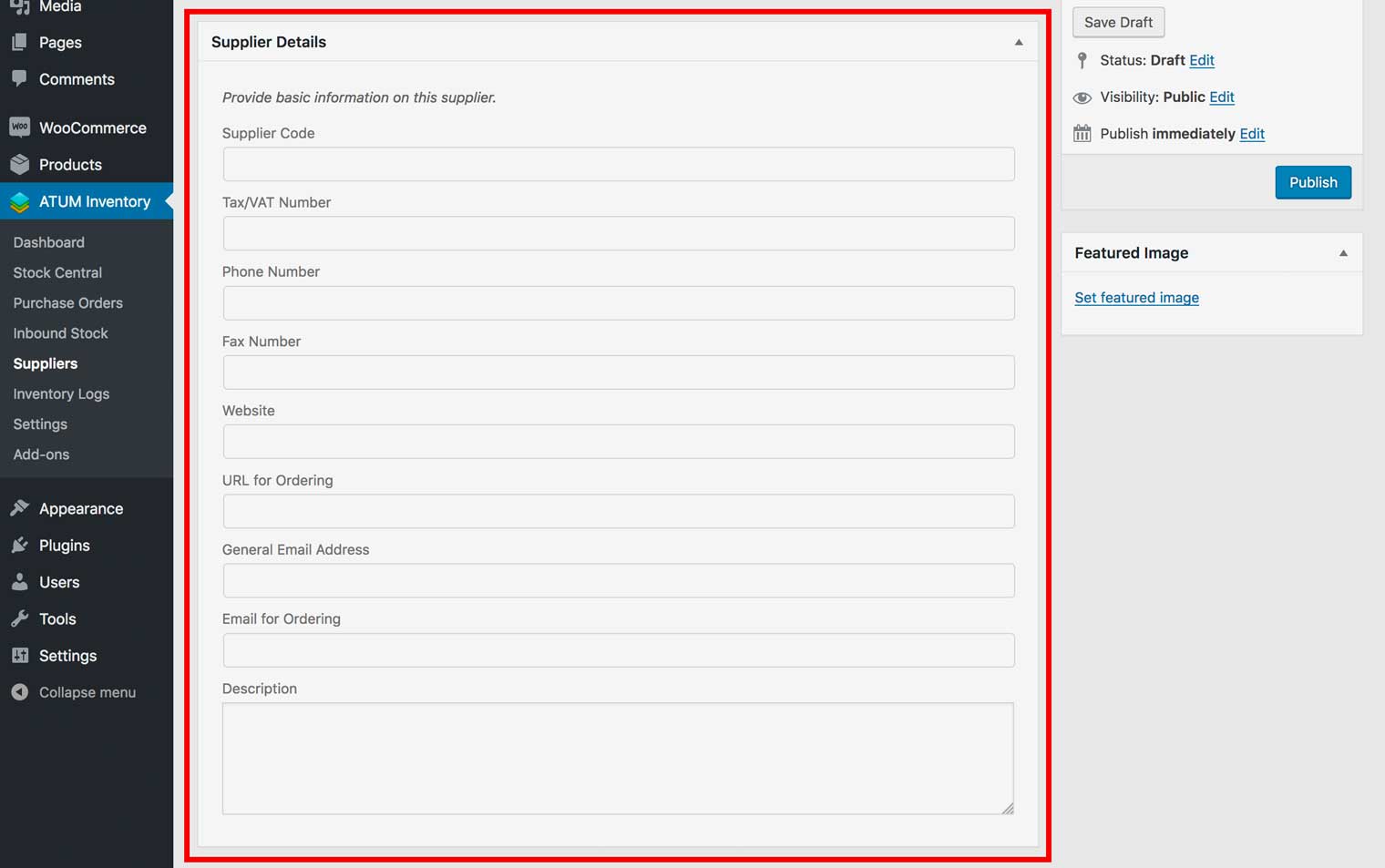
- Supplier Code: A short version of the supplier’s name.
- Tax/VAT Number: The tax number for the supplier.
- Phone Number: The telephone number of the supplier.
- Fax Number: The fax number of the supplier.
- Website: The supplier’s website address.
- URL for Ordering: The link to the supplier’s ordering page.
- General Email Address: The main contact email address for the supplier.
- Email for Ordering: The email address used for ordering inventory from the supplier.
- Description: Any important information about the supplier.
- Enter billing information for the supplier in the Billing Information section:
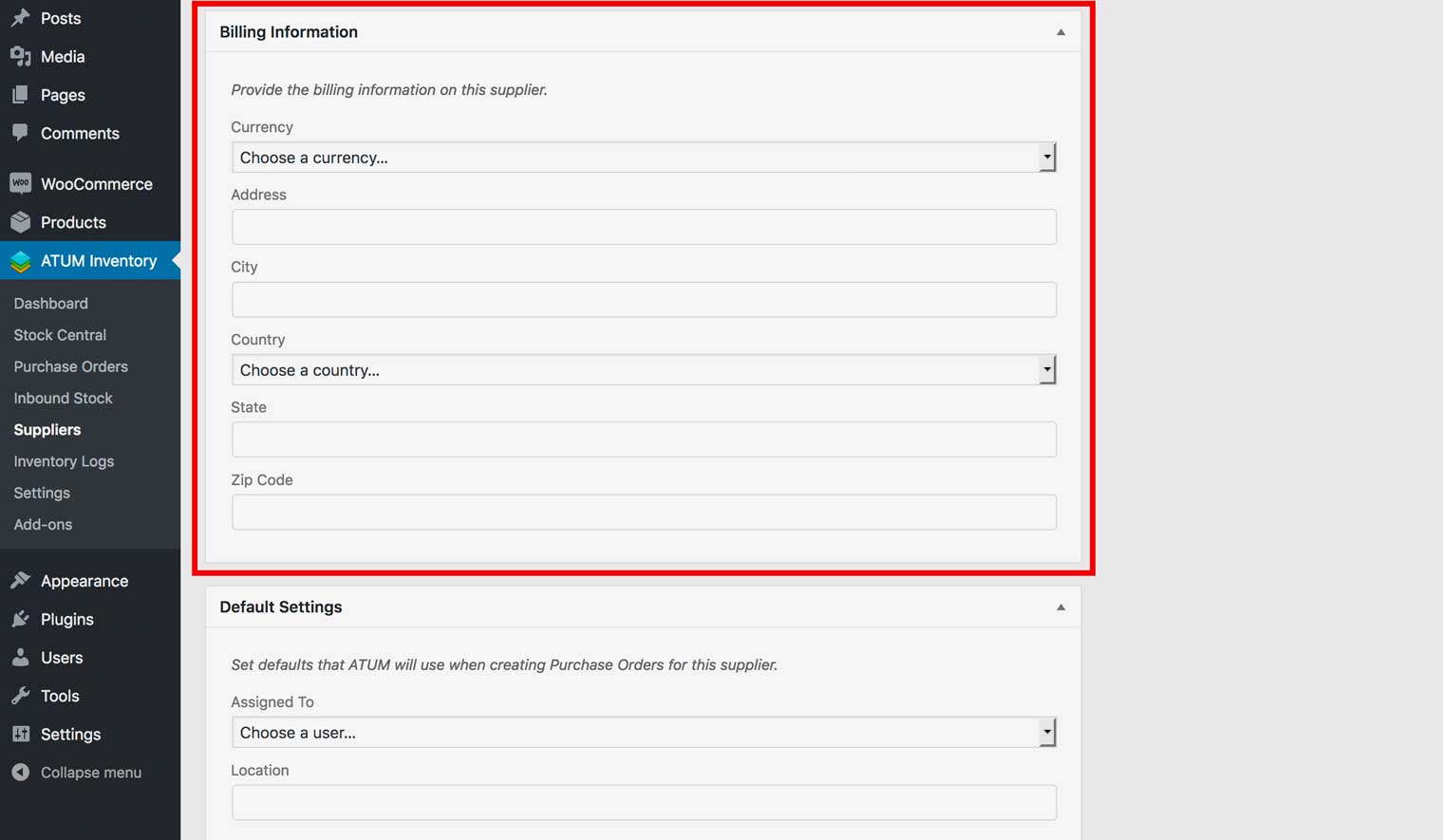
- Currency: Select the currency used by the supplier.
- Address: Enter the address of the supplier.
- City: Enter the city where the supplier is located.
- Country: Enter the country where the supplier is located.
- State: Enter the state where the supplier is located.
- Zip Code: Enter the postal code of the supplier.
- Enter information in the Default Settings section:
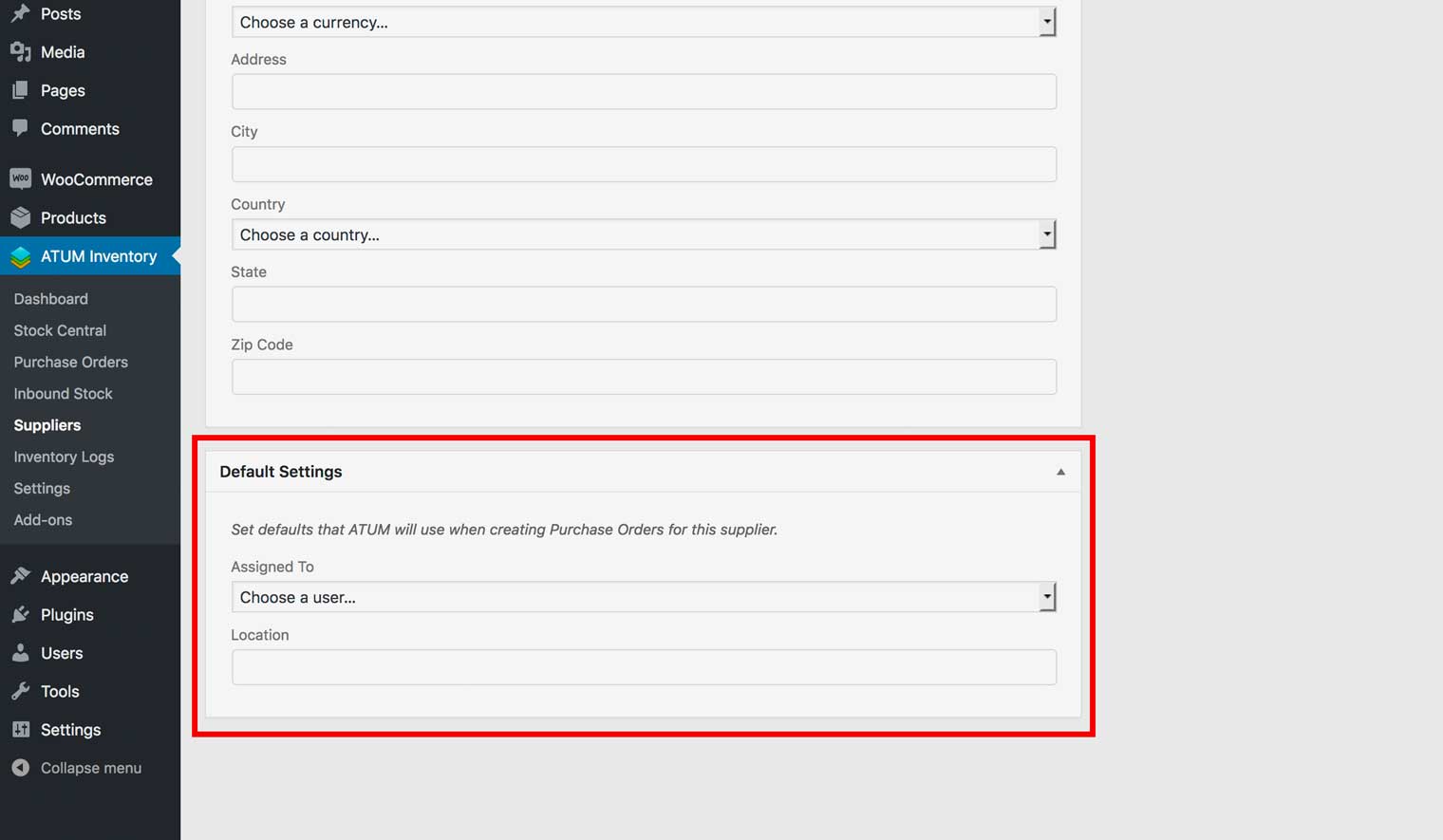
- Assigned To: Select the contact at your company who will be notified when a purchase order for this supplier is created.
- Location: The location of the contact who is assigned to this supplier.
- Click Publish to add your supplier.
NOTE:Click Save as Draft if you want to save this supplier information without adding it to your system.