
How does price per Inventory work?
The Price per Inventory option allows you to set a different price for each inventory within a single product. One of the most powerful features ATUM brings to market where it gives unlimited possibilities to stores.
Let’s see some examples.
EXAMPLE 1 – Different regular prices
You have a product in your store with low stock, and you need to buy a new lot, but the purchase price is higher than the existing one.
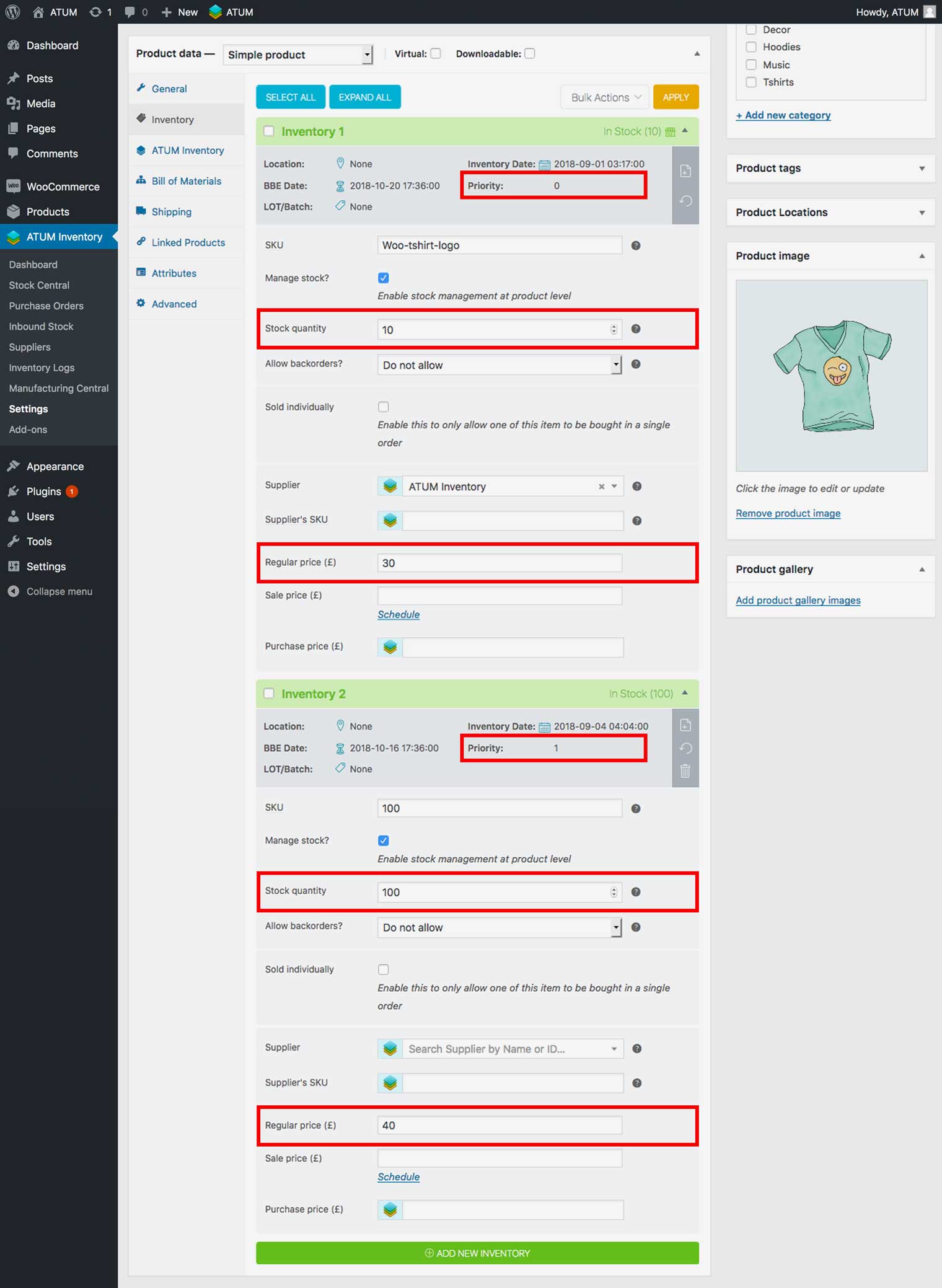
With ATUM Multi-Inventory you can create a product with two different inventories and set the price for each one. For example, you can create two inventories with the following data:
Inventory 1 (existing)
- Priority order: 0
- Stock Quantity: 10
- Regular Price: £30
Inventory 2 (new)
- Priority order: 1
- Stock Quantity: 100
- Regular Price: £40
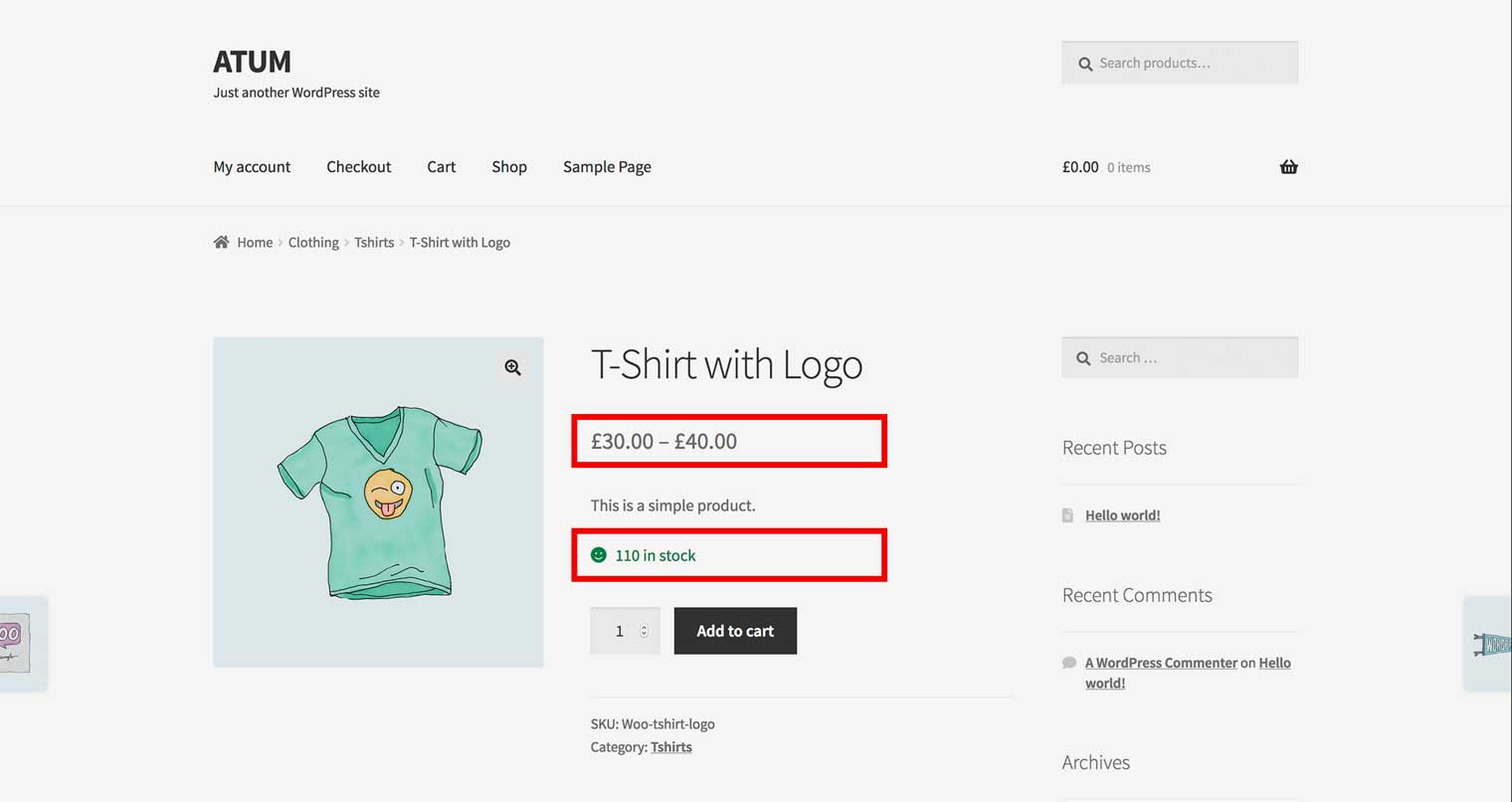
With this set up the product will be displayed In Stock with 110 units available in the shop, and a prices range 30-40 will show. About the selling priority, the Inventory 1 will sell first.
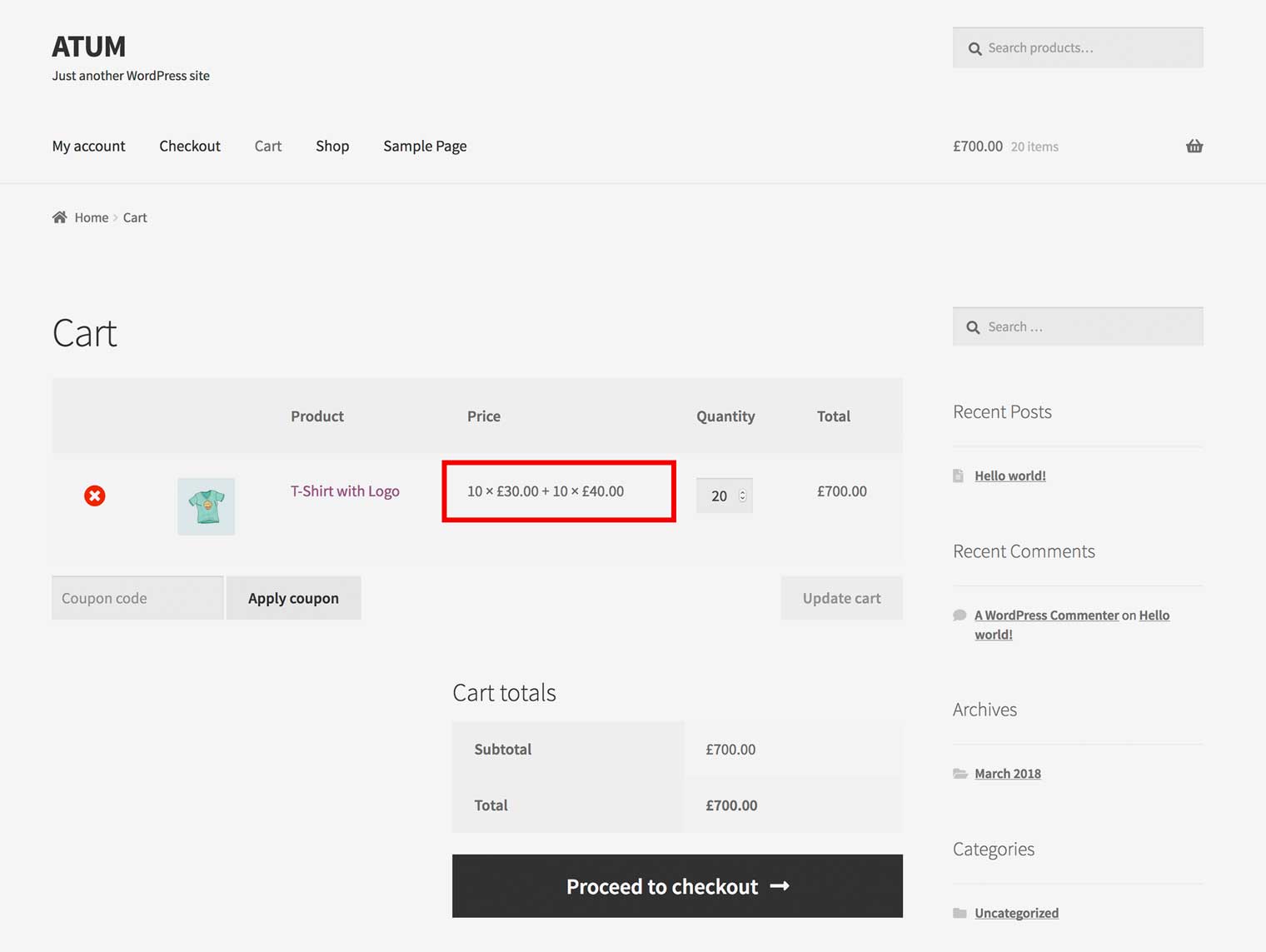
If a user wants to buy 20 units of this product, the Inventory 1 will be empty and will need to use ten units from the Inventory 2. Stock from both inventories will create the cart with the appropriated price: 10 units to £30 (from Inventory 1) and 10 unit to £40 (from Inventory 2).
EXAMPLE 2 – Different sale prices
You have a sale product in your store, and you want to create a new promo to sell the first ten units with a special discount.
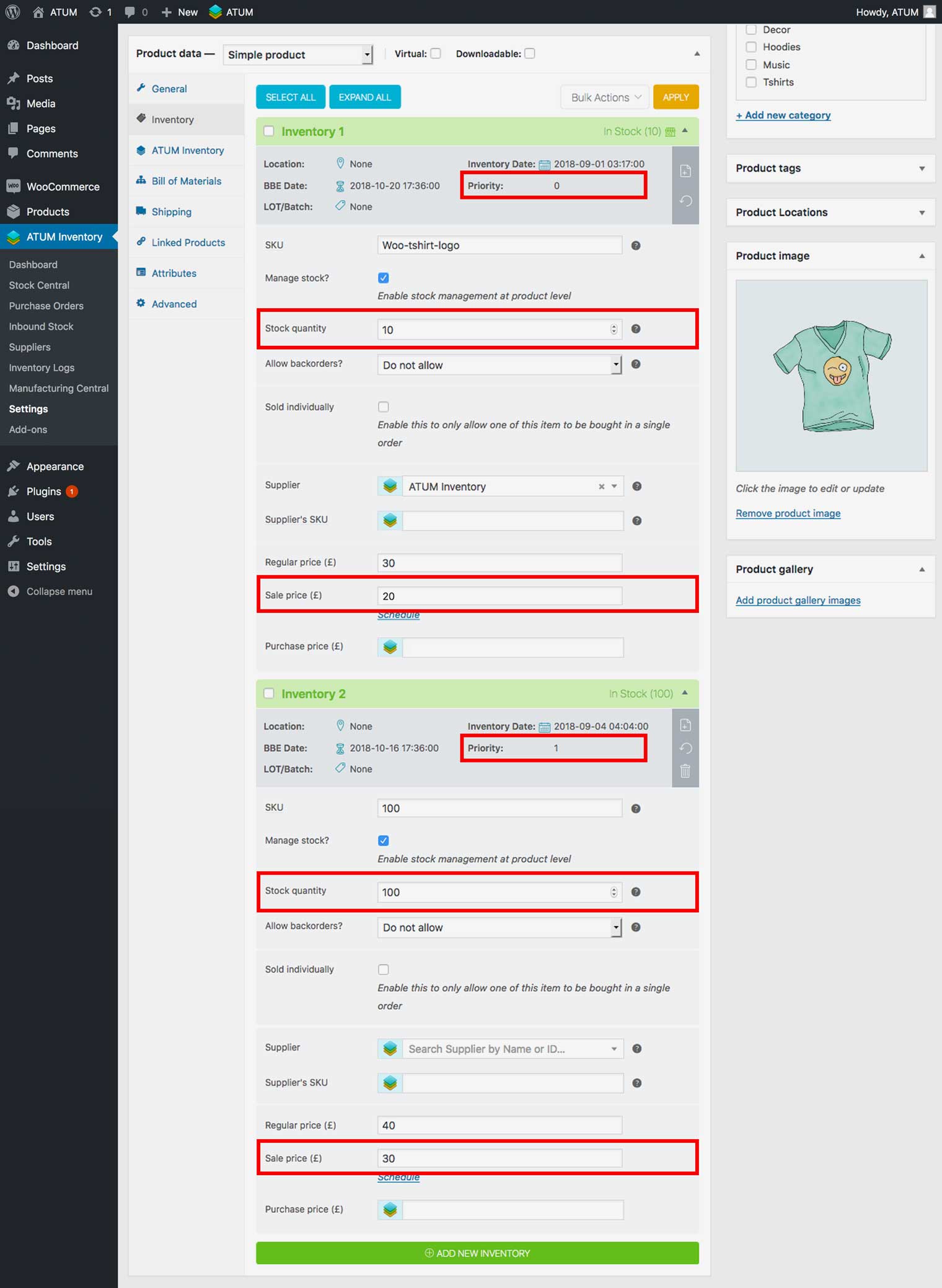
With ATUM Multi-Inventory you can create a product with two different inventories and set the sale price for each one. For example, you can promote two inventories with the following data:
Inventory 1 (Special Discount)
- Priority order: 0
- Stock Quantity: 10
- Regular Price: £30
- Sale Price: £20
Inventory 2 (Normal Discount)
- Priority order: 1
- Stock Quantity: 100
- Regular Price: £40
- Sale Price: £30
With this set up the product will be displayed In Stock with 110 units available in the shop, and both sale prices will show. According to the selling priority, the Inventory 1 will sell first.
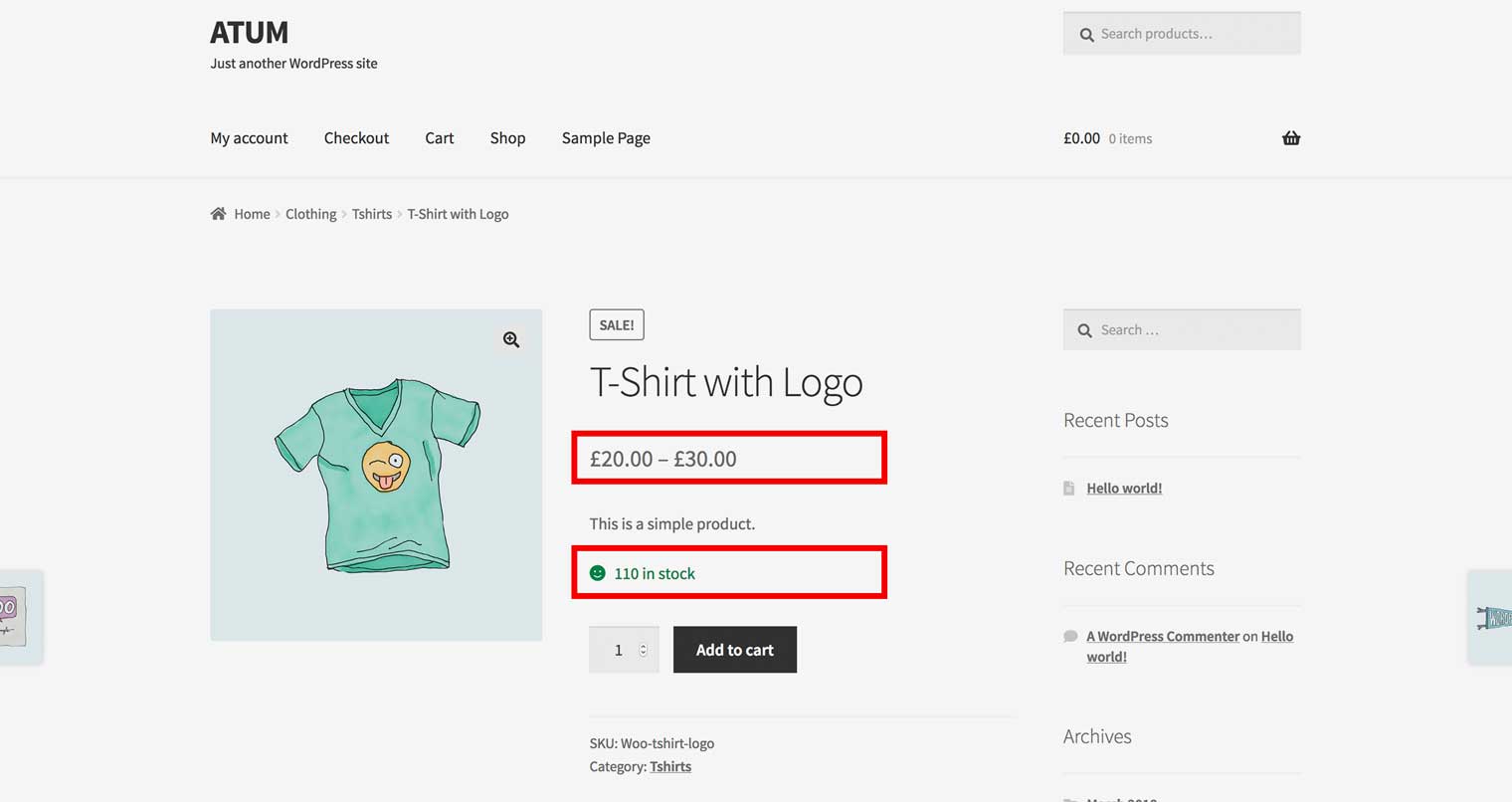
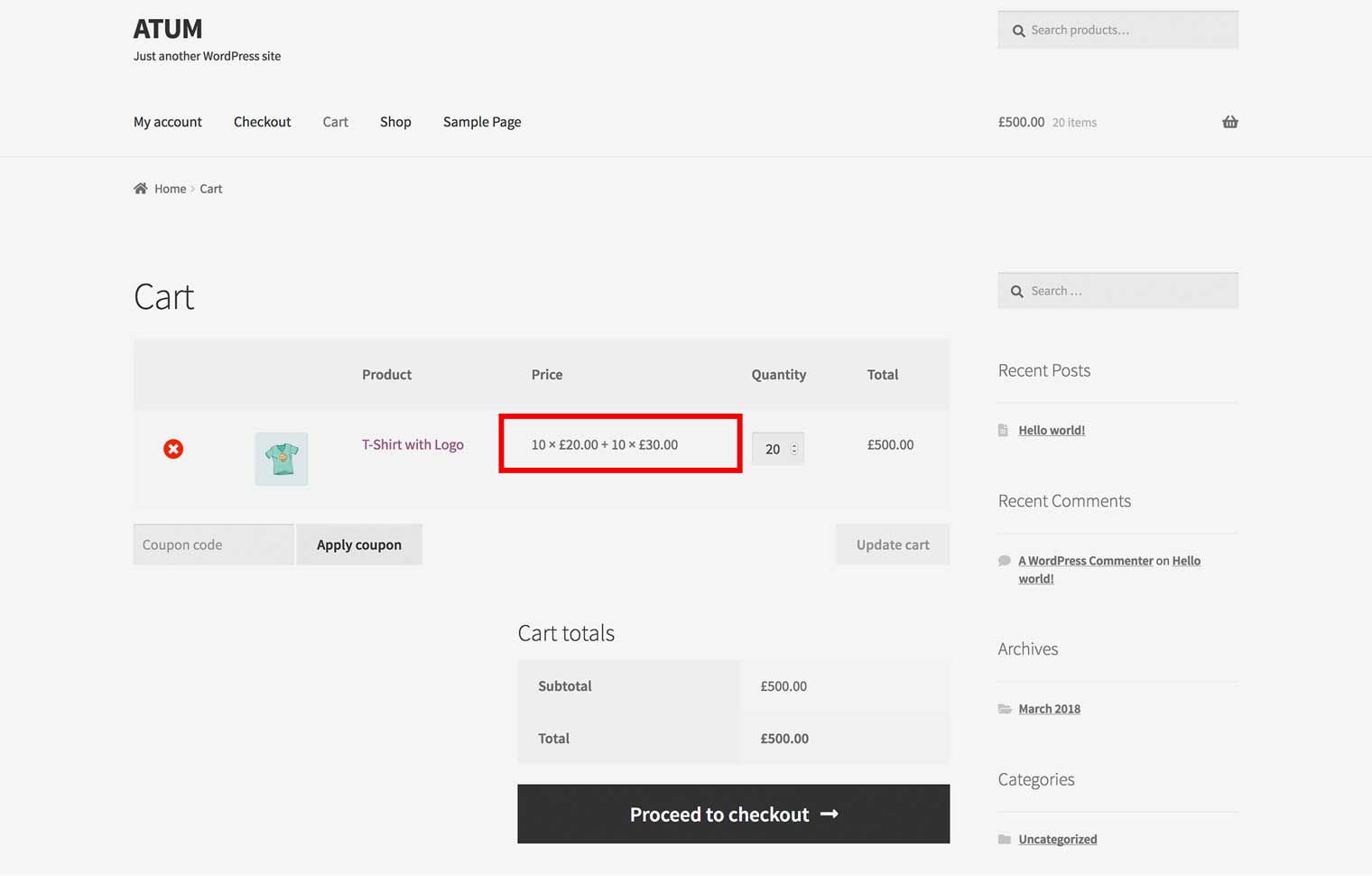
If a user wants to buy 20 units of this product, the Inventory 1 will be empty and will need to use ten units from the Inventory 2. Then both stocks will be added to cart with the appropriated price: 10 units to £20 (from Inventory 1) and 10 unit to £30 (from Inventory 2).
EXAMPLE 3 – Different prices for different countries
You have a product in your store, and you want to sell it in different countries with a different price for each one.
With ATUM Multi-Inventory you can create a product with different inventories and set the price for each one. For example, you can create two inventories with the following data:
Inventory 1 (For Spain)
- Region: Spain
- Stock Quantity: 100
- Regular Price: £20
Inventory 2 (For UK)
- Region: United Kingdom
- Stock Quantity: 100
- Regular Price: £30
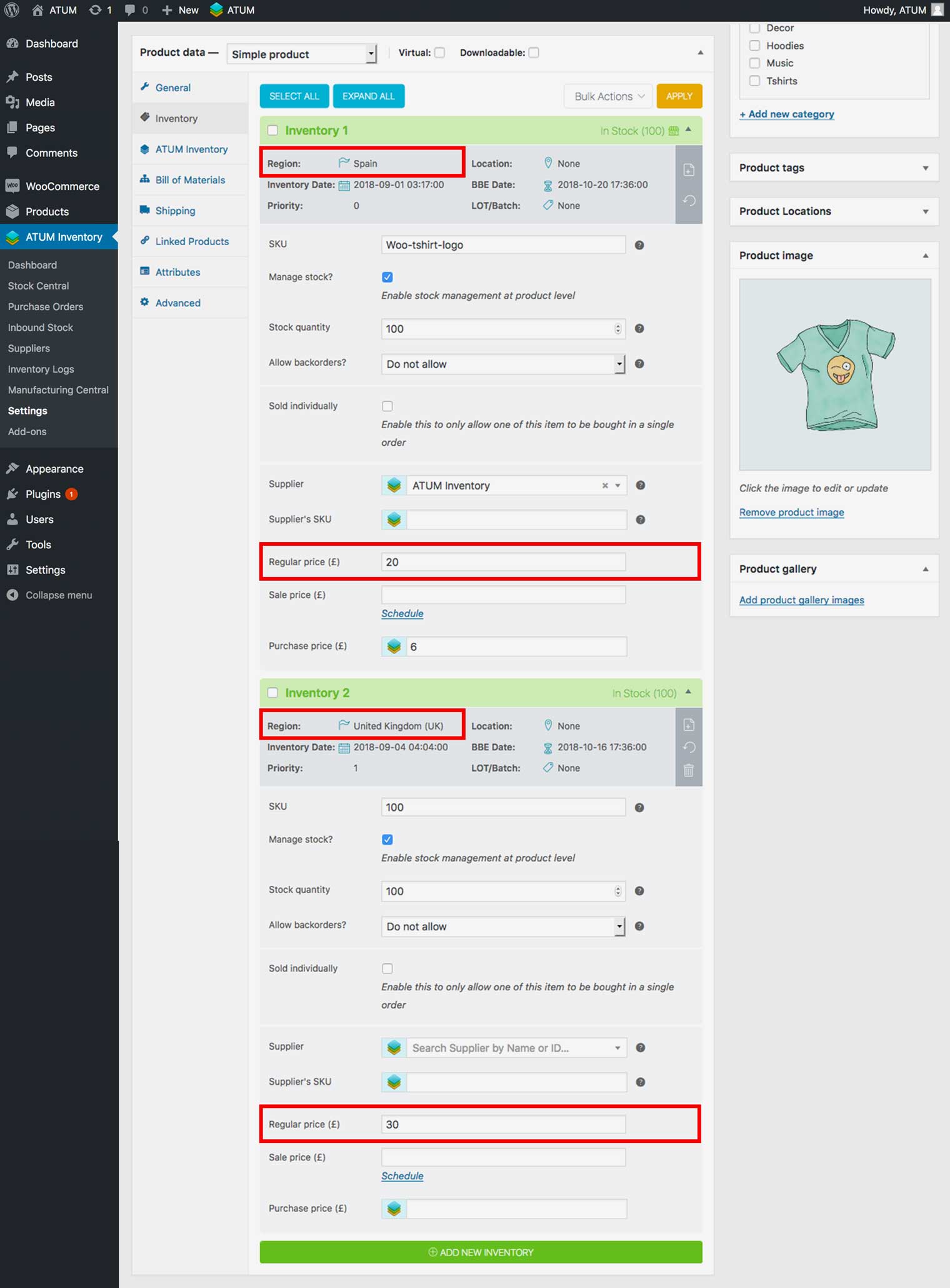
With this setup, the product will display with a price of £20 for visitors from Spain and a price of £30 from visitors from the UK.