Emails
Go to WooCommerce > Settings > Emails to configure all notification emails that you can manage from the plugin.
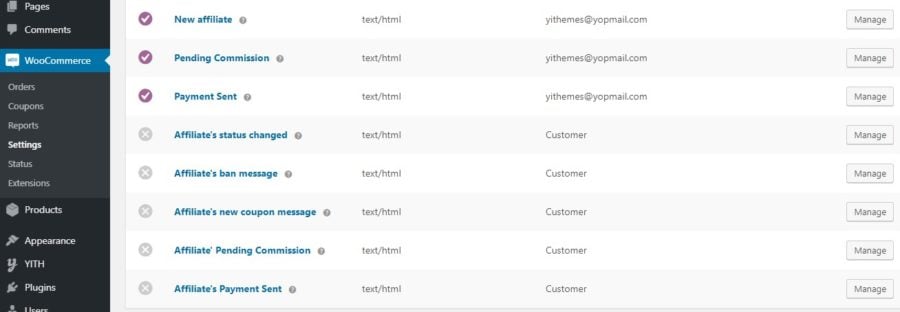
Notification emails sent through the plugin are the following:
- new affiliate registration completed
- commission status changed to pending
- payment sent
- affiliate’s status changed
- affiliate’s ban notification
- new coupon assigned to the affiliate
- affiliate’s pending commission
- affiliate’s payment sent
If you want to edit the default email HTML template, click on the button Copy file to theme.
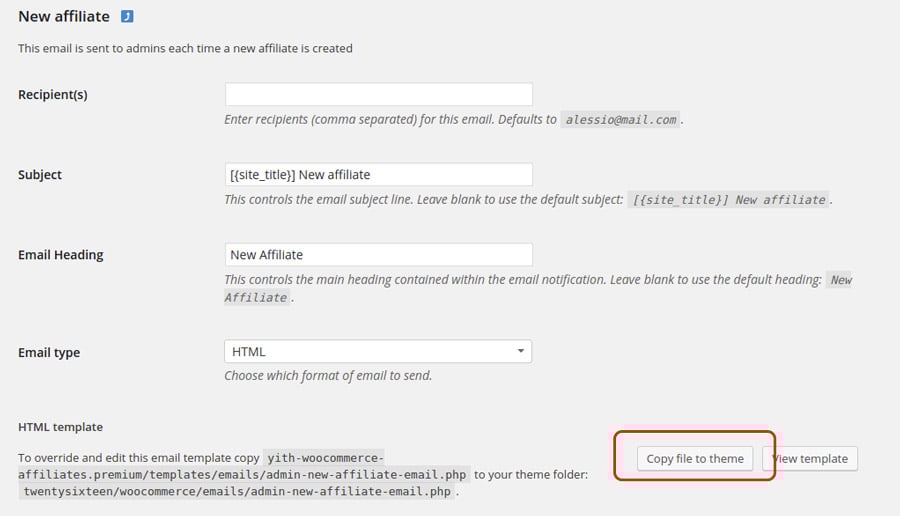
Now, a copy of the template file has been added to the specified path, so that you can make all changes you wish, without having to edit the original code.
“Affiliate dashboard” shortcode
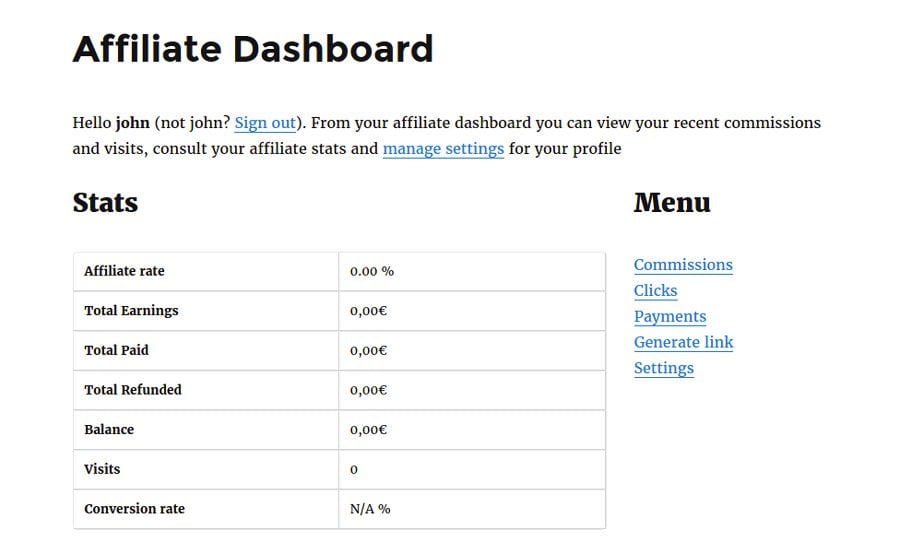
The [yith_wcaf_affiliate_dashboard] shortcode allows you to insert a dedicated dashboard for the affiliate in the page.
The dashboard is divided into different sections: commissions, clicks and payments.
There are three shortcode parameters that are related to the sections for which the elements pagination is provided:
- pagination: (yes/no) enable/disable the pagination within the dashboard section
- per_page: element s shown per page
- current_page: page number shown in any section.
Suppose that we have a pagination for an elements list in the “Commissions” section, by specifying 2 as parameter value, only page 2 will be shown in the section
Print sections for affiliate dashboard
With a shortcode for each section, the admin is able to print that specific affiliate dashboard section, in any page of the site:
- Commissions: [yith_wcaf_show_commissions]
- Clicks: [yith_wcaf_show_clicks]
- Payments: [yith_wcaf_show_payments]
- Settings: [yith_wcaf_show_settings]
“Registration form” shortcode
The yith_wcaf_registration_form shortcode inserts the registration form in the page, that the user can use to register as new affiliate to the shop.
If a registered user views the page, only the “Become an affiliate” button will be shown, the user’s profile will be added to the affilate ones thanks to this button.
On the contrary, for non registered users the whole registration form will be shown.
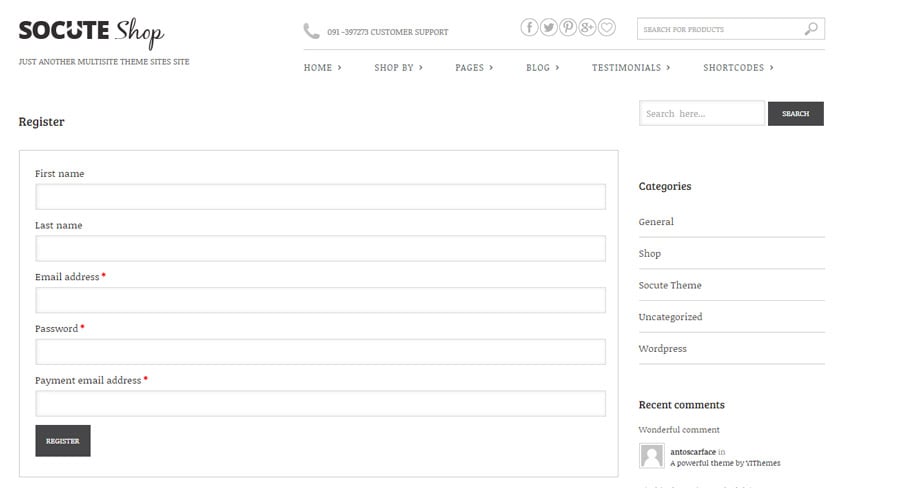
The shortcode parameters are:
- show_name_field: (yes/no) show or hide the “name” field of the form
- show_surname_field: (yes/no) show or hide the “surname” field of the form
“Link generator” shortcode
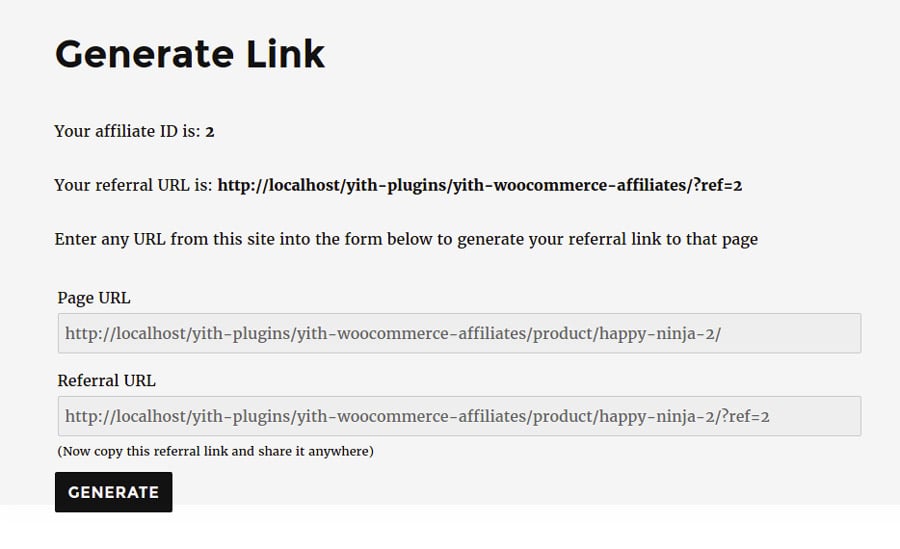
The [yith_wcaf_link_generator] shortcode inserts a form in the page, that allows the user to get an affiliation link in a dynamic way, depending on the specified URL.
“Set Referrer” shortcode
The [yith_wcaf_set_referrer] shortcode inserts a form which gives the user the possibility to enter the affiliate code to whom he/she wants to be associated.
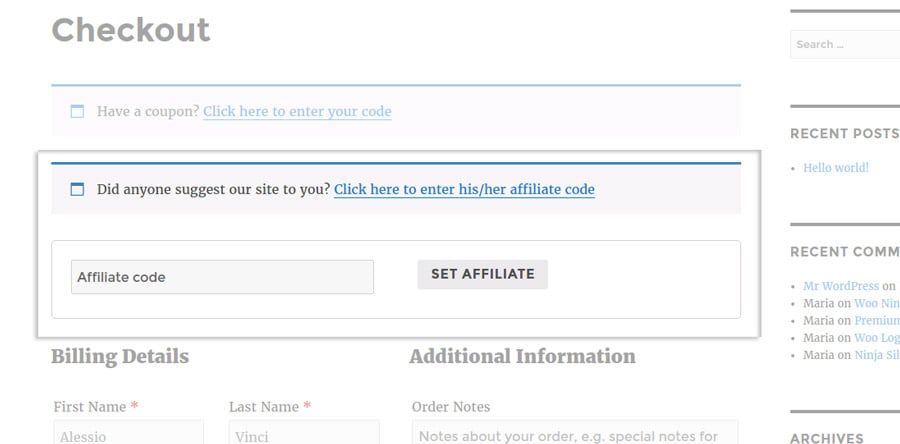
The only shortcode parameter is “affiliate_token”, which allows you to specify a default affiliation token that will be considered in case the user hasn’t inserted any value in the form.
Visible content shortcode
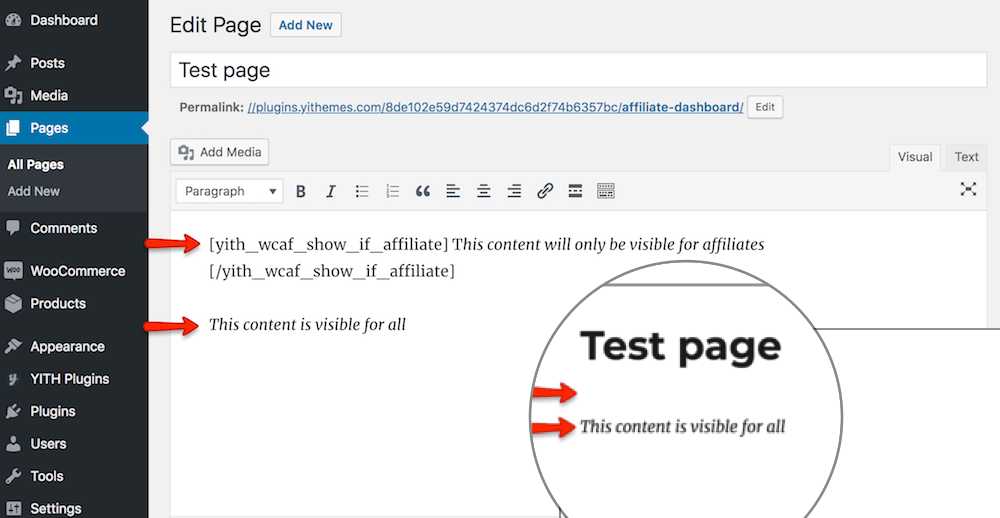
You can paste this shortcode wherever WordPress allows you to place one, to include contents that will only be visible to affiliates.
[yith_wcaf_show_if_affiliate] this content will only be visible for affiliates[/yith_wcaf_show_if_affiliate]If you are not an affiliate, you will not be able to see the content.
Parameters
The shortcode is more complex, since it accepts parameters and can show content just to certain subset of affiliates.
The parameter is show_to and these are allowed values:
- valid_affiliates Shown only to valid affiliate (affiliate enabled, not banned).
- enabled_affiliates Shown only to enabled affiliates.
- all_affiliates Shown to all affiliates.
- {user role} If you enter a valid user role name, such as shop_manger, content will be shown just to shop managers.
- logged_in_users Shown only to logged users
- anyone All users
Example with parameter:
[yith_wcaf_show_if_affiliate show_to=”enabled_affiliates”]CONTENT FOR AFFILIATE[/yith_wcaf_show_if_affiliate ]Affiliation scenarios
Permanent affiliation
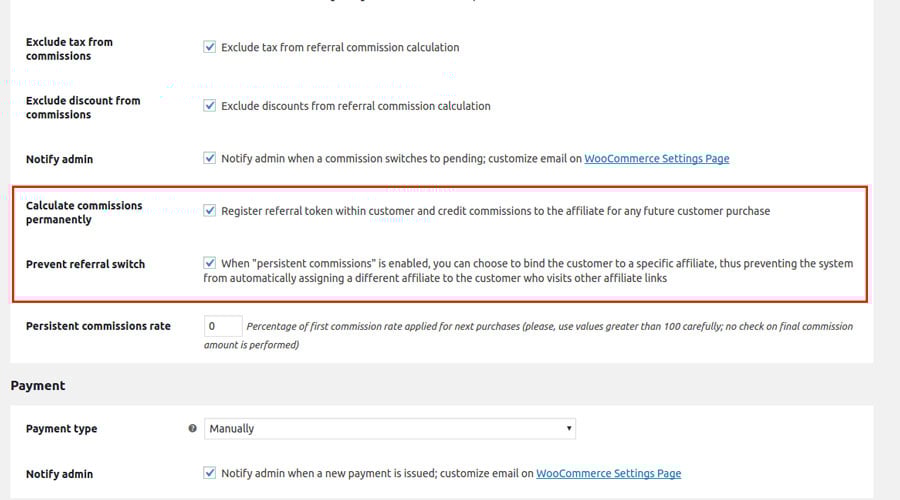
In this scenario, the user keeps being associated with the very first affiliate, whether the user comes back through another affiliate link or not, it doesn’t matter.
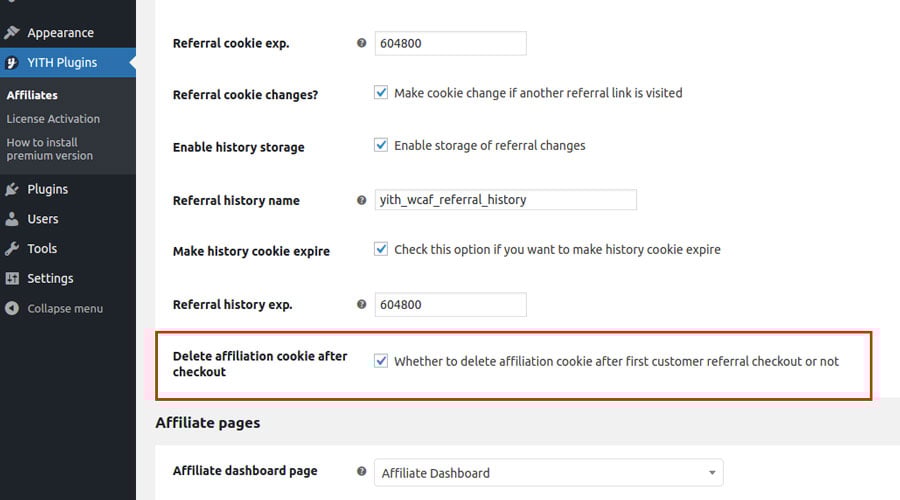
In order to set a permanent affiliation system, you’ll have to configure the commission settings as in the image below.
Change affiliation based on the referral link
The affiliate is associated with the purchase of a user, when he visits the website through his/her own referral link.
Commissions for this affiliate are generated each time the user makes a purchase.
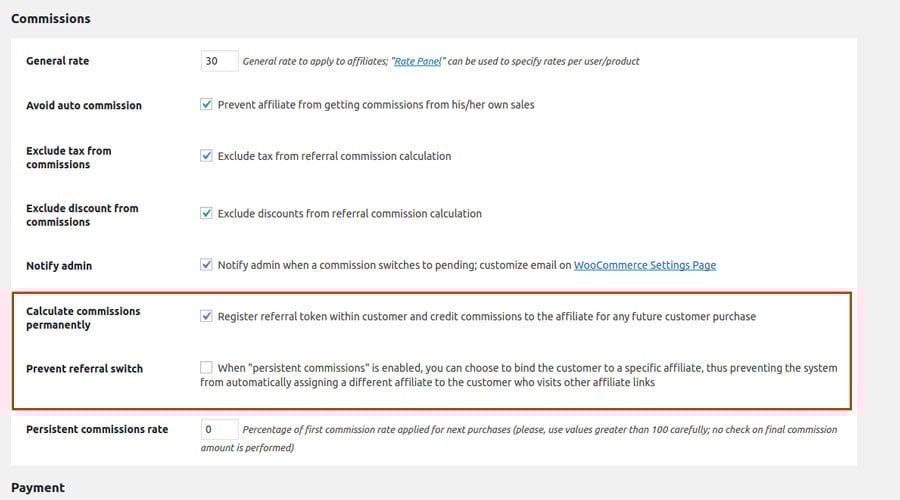
If the user, buys through a different referral link, the user is associated with the latter one and the affiliate commissions will go to the new referrer.
Configure the commission options as in the image below if you want to apply this affiliation system to your website.
Affiliation for unlogged users
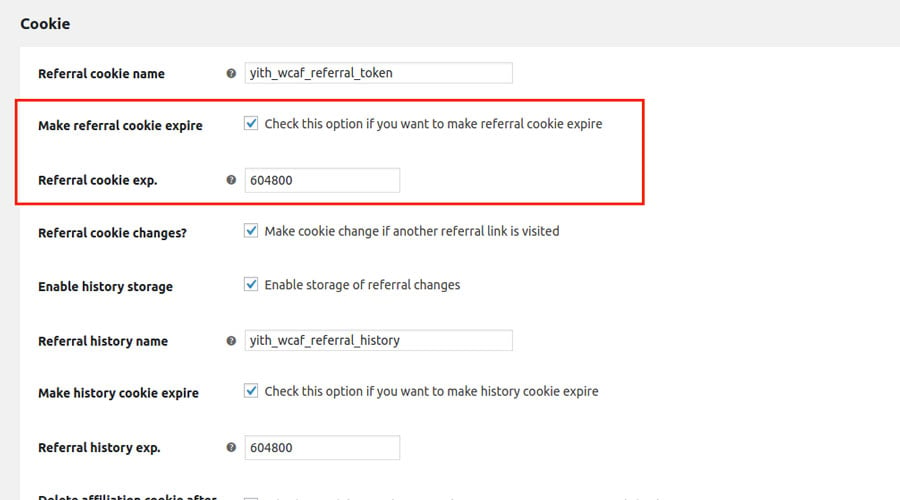
The only way to track affiliate purchases coming from unlogged users, is to check if there is a specific cookie in the browser they are using.
Thanks to this cookie, you’ll be able to backtrack the affiliate number and generate commissions for any possible purchases.
The cookie is automatically removed if any of the following conditions occur:
- the cookie is expired
- the user has made a purchase