
Getting Started with Sprout Invoices
After installing and activating Sprout Invoices, you will be redirected to the Getting Started dashboard. There, you will want to activate your license first. Your license key can be found on your account page.
After activating your license, review the additional information on the page to help you get started with the plugin. When you feel well acquainted with the information, click on the “General Settings” tab to start configuring Sprout Invoices.
Create and Send Your First Invoice
Lead Generation
Receiving estimate requests on your site is simplified with Sprout Invoices. The General Settings tab has more information on how to add a form to your site and includes settings for advanced form integration with a plugin, e.g. Gravity Forms or Ninja Forms. Check out our documentation to get this setup: Gravity Forms Integration and Ninja Forms Integration.
Estimate Settings
The Default Terms and Default Notes will be applied to each estimate; however, Terms and/or Notes can be set per estimate.
Invoice Settings
The Default Terms and Default Notes will be applied to each invoice; however, Terms and/or Notes can be set per invoice.
Notification Settings
The “from” name and “from” e-mail is used for all Sprout Invoice notifications. Example: “Joc Pederson” [email protected]
Changing the email format to “HTML” will make the default notifications unformatted and look like garbage; if you want to create some pretty HTML notifications, make sure to modify all of the notification’s markup.
Since creating your own HTML notifications can be a real drag, here’s an add-on that provides some clean HTML templates.
Company Info
This information is used on all estimates and invoices. You’ll want to make sure to fill out this information before sending out any invoices/estimates.
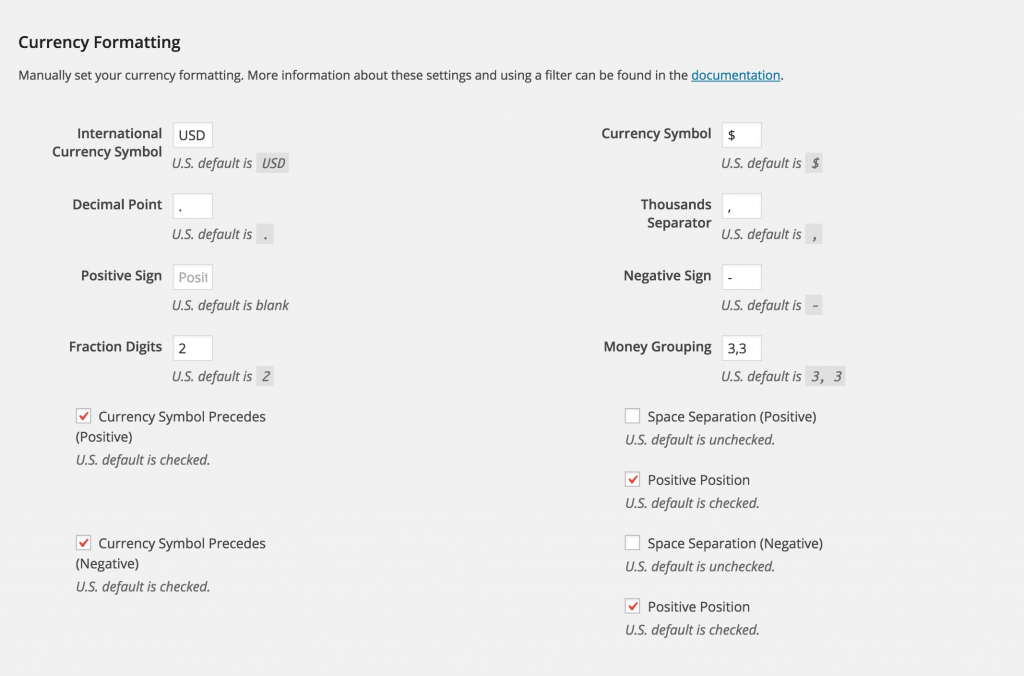
Currency Formatting
If your server doesn’t support the localeconv() function (or simply returns bad information), these options will allow you to set the currency formatting for your site.
Advanced
The option to Save Logs is for debugging purposes and is not recommended unless advised. It’s important to know that enabling this option on a live site may cause private transaction data to be saved in the DB unencrypted, i.e. CC data.
Troubleshooting
Having issues? Have a look at our troubleshooting section and/or let us know via support ([email protected]).