
How to add a Multi-Inventory product in Inventory Logs
If you want to add a Multi-Inventory product in a Inventory Logs:
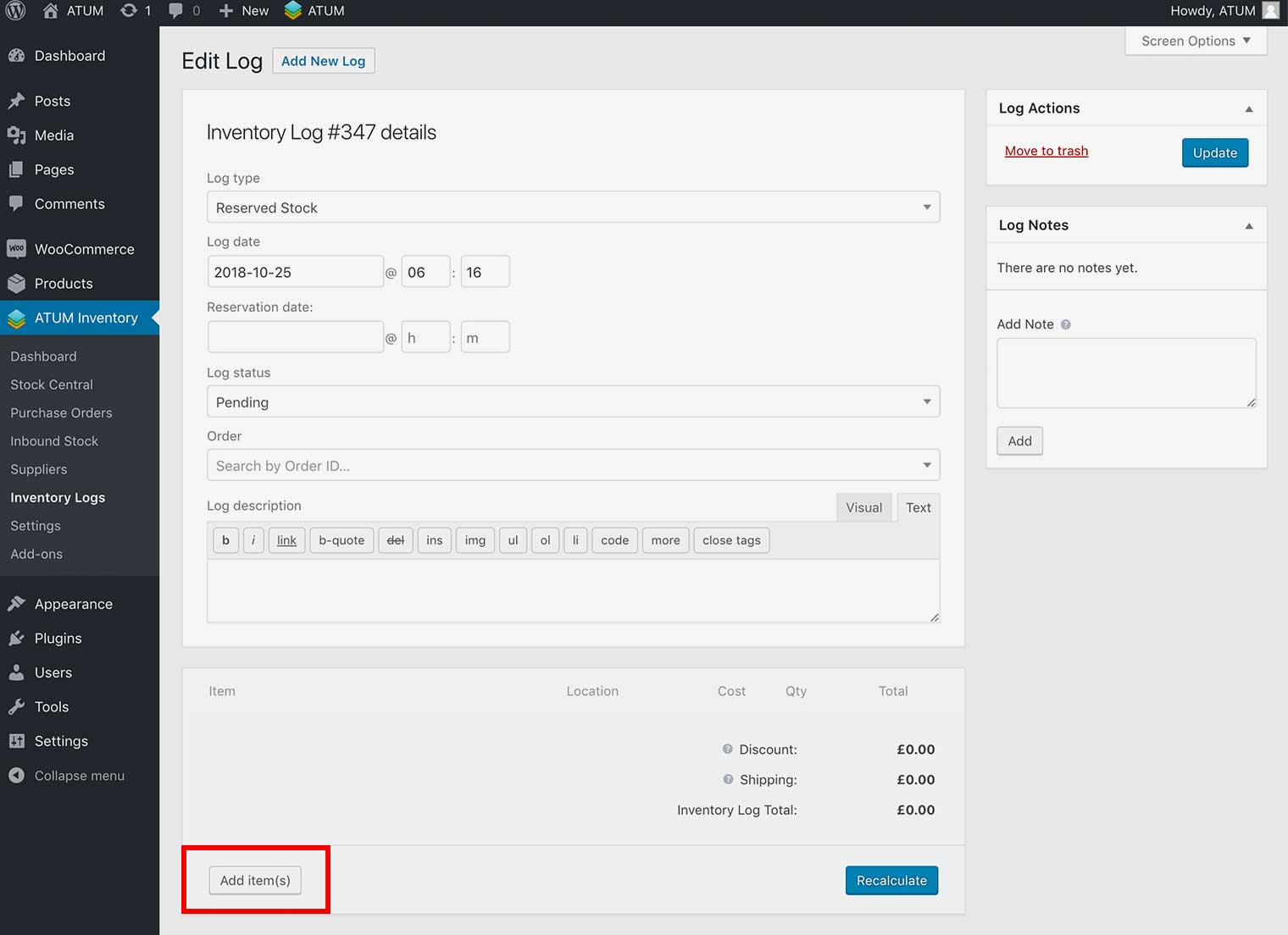
- In WordPress admin panel, go to ATUM Inventory > Inventory Logs and open a log for editing or create a new one.
- Click Add Item(s) button.
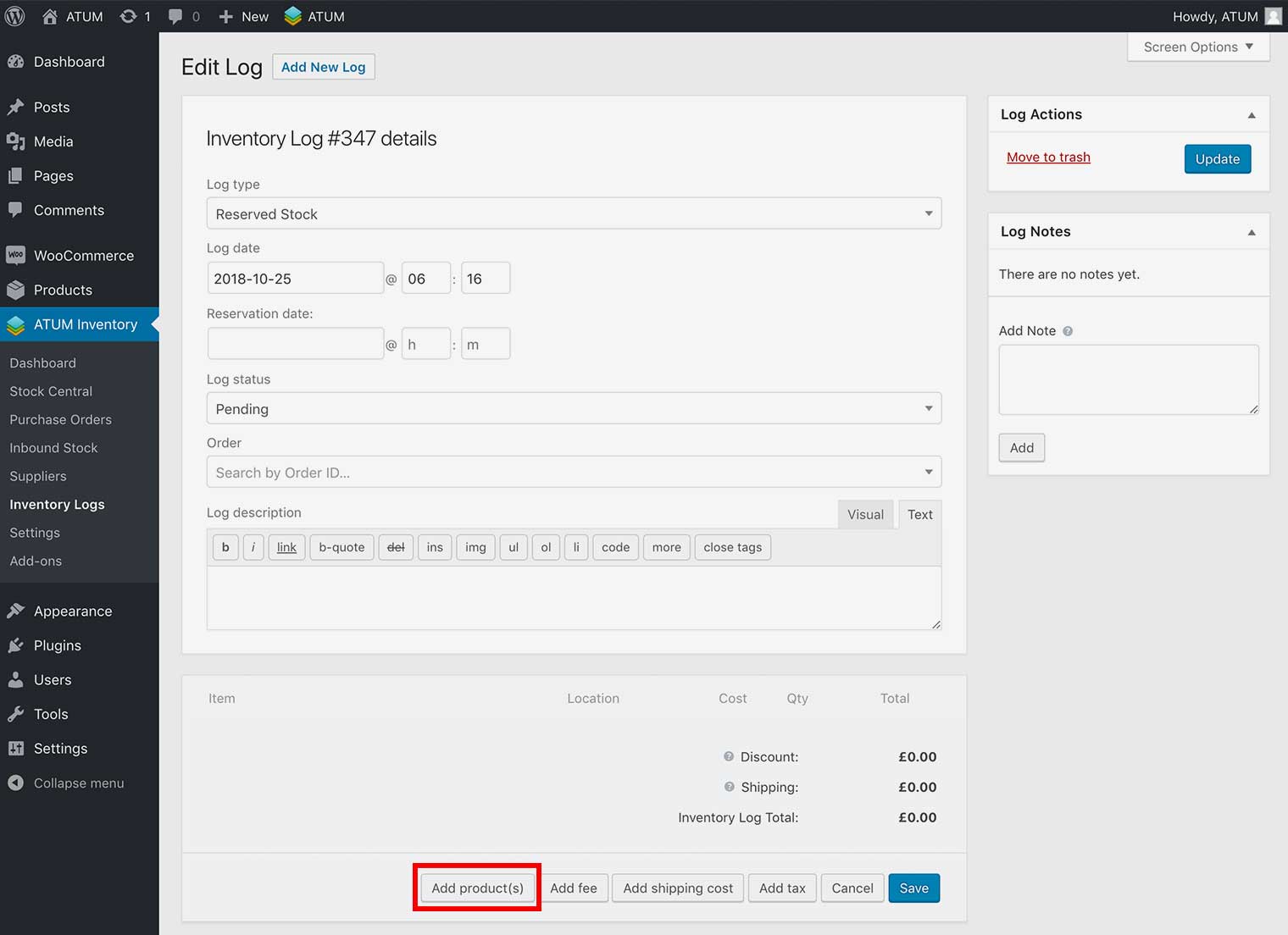
- Click Add Product(s) button.
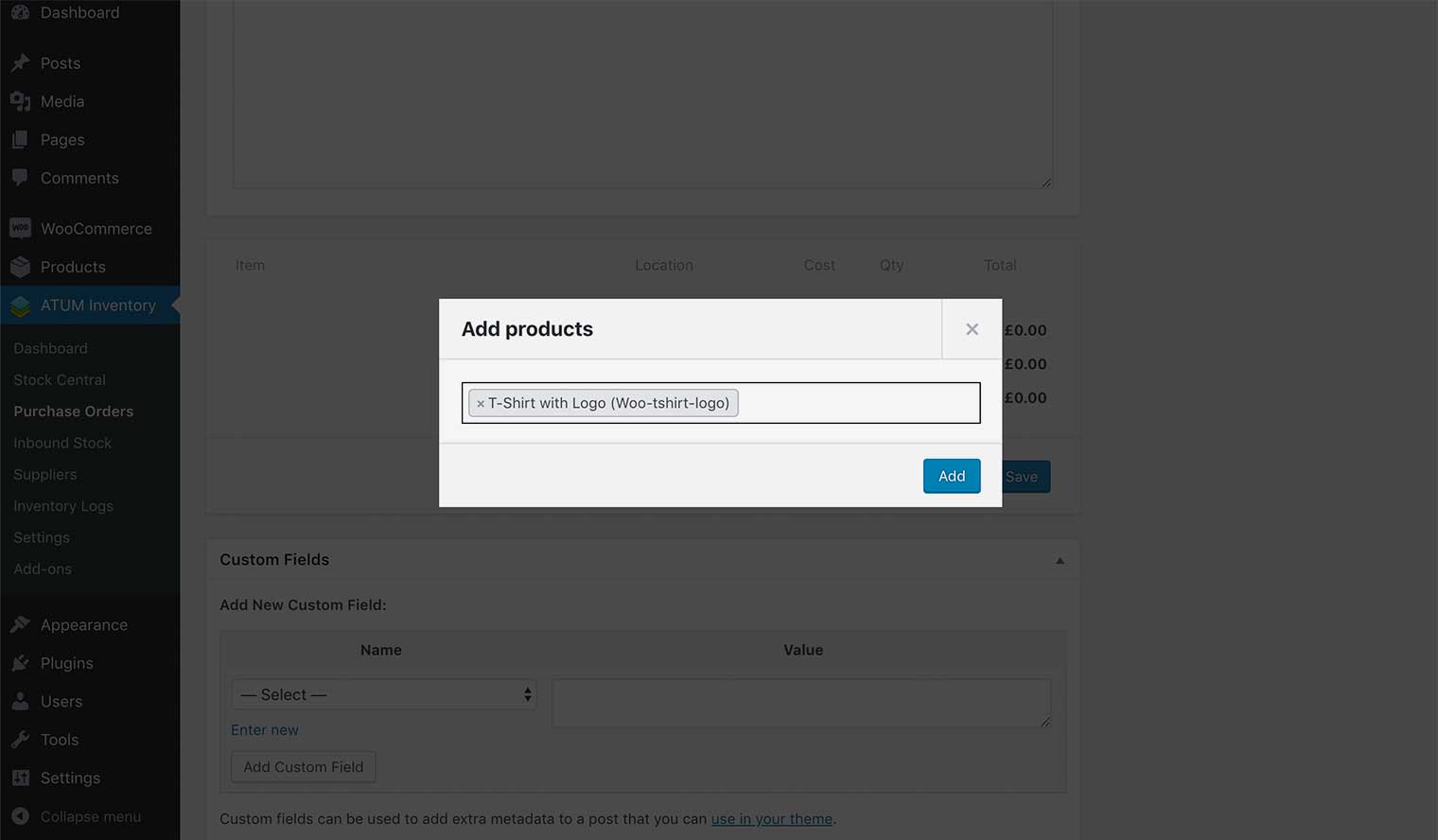
- Select the Multi-Inventory product you wish and click the Add button.
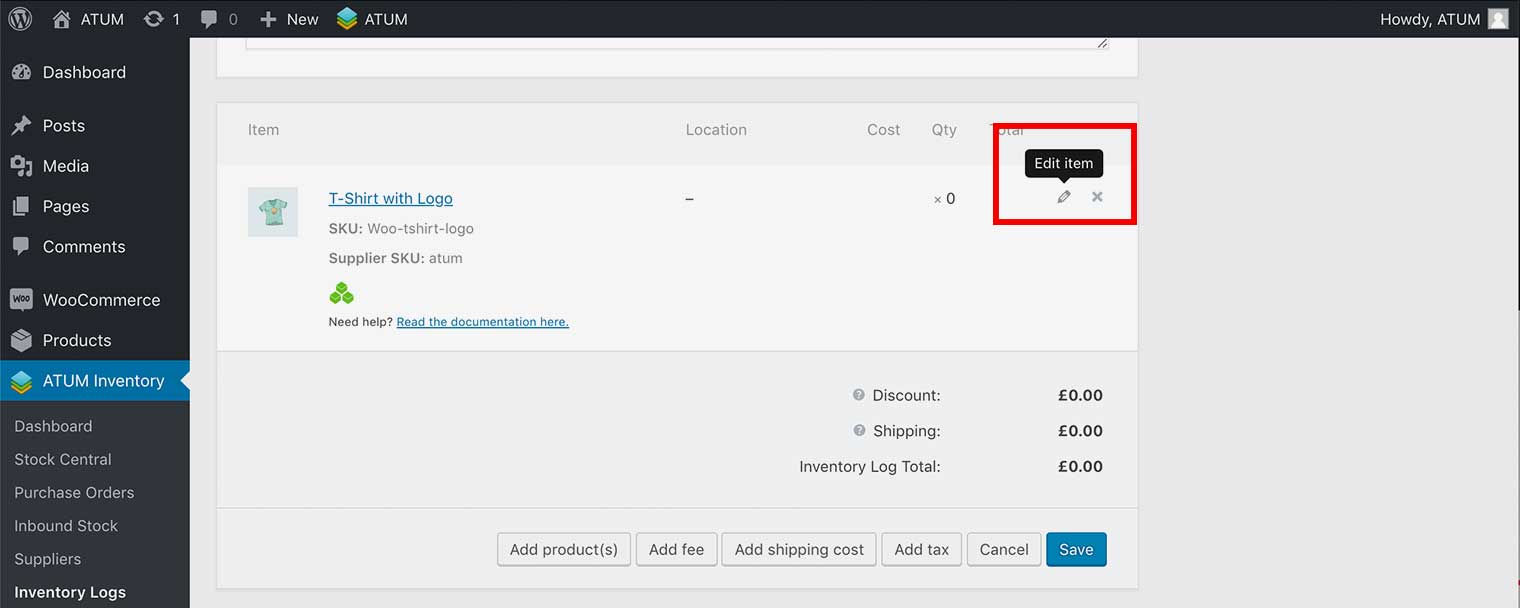
- Click the Edit Item button to add inventories.
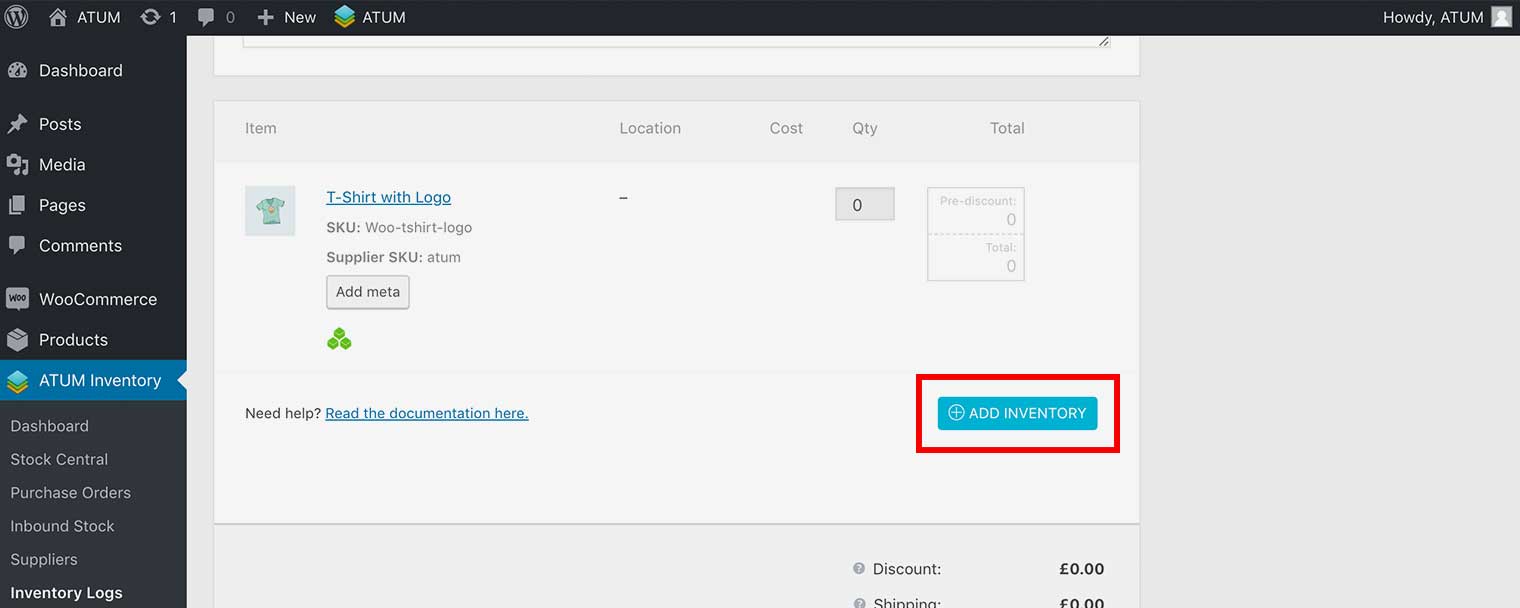
- Click the Add Inventory button.
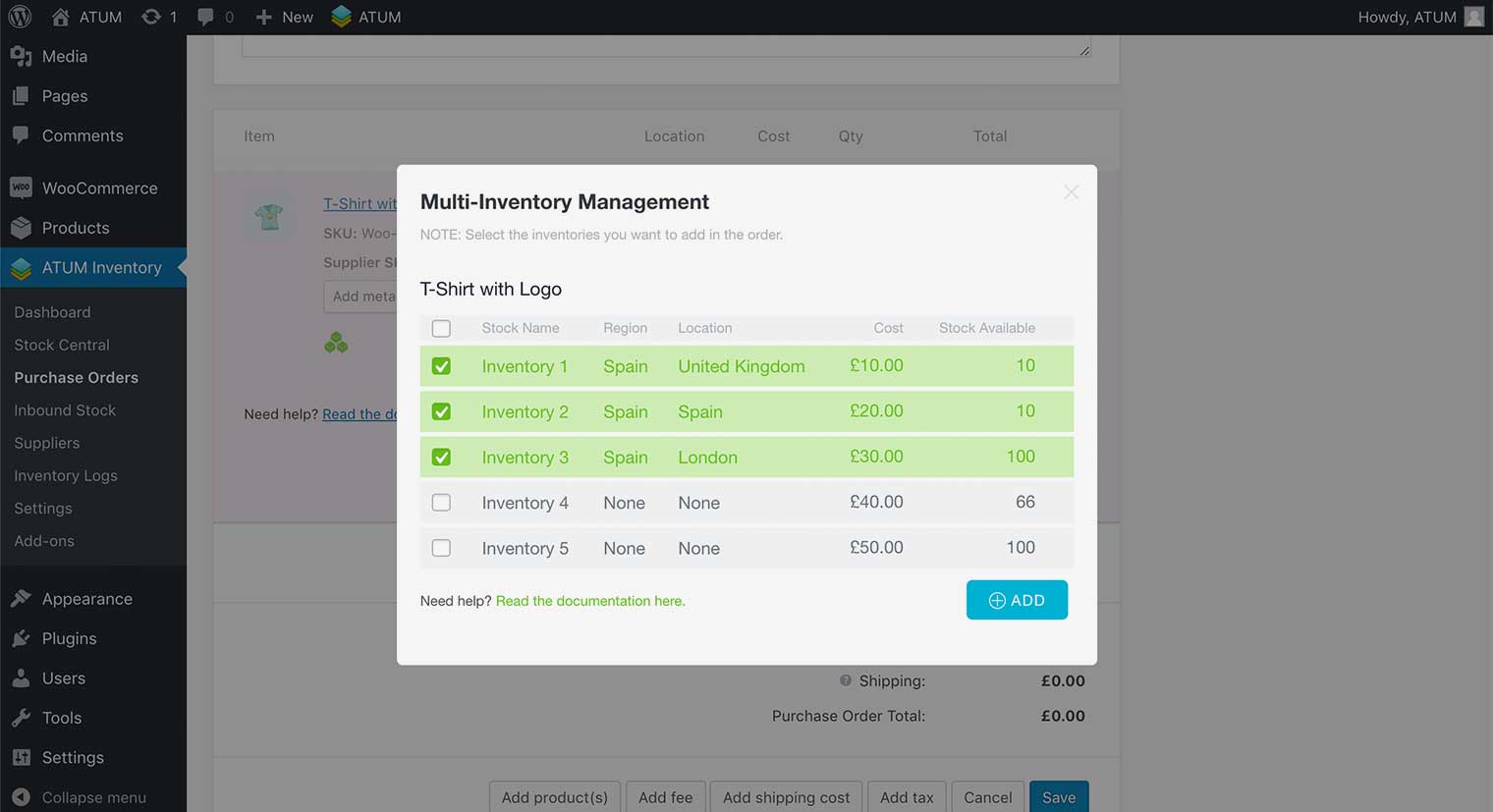
- The Multi-Inventory Management PopUp will open. In the PopUp you will see the product’s inventories. Then select the inventories you want to add and click the Add button.
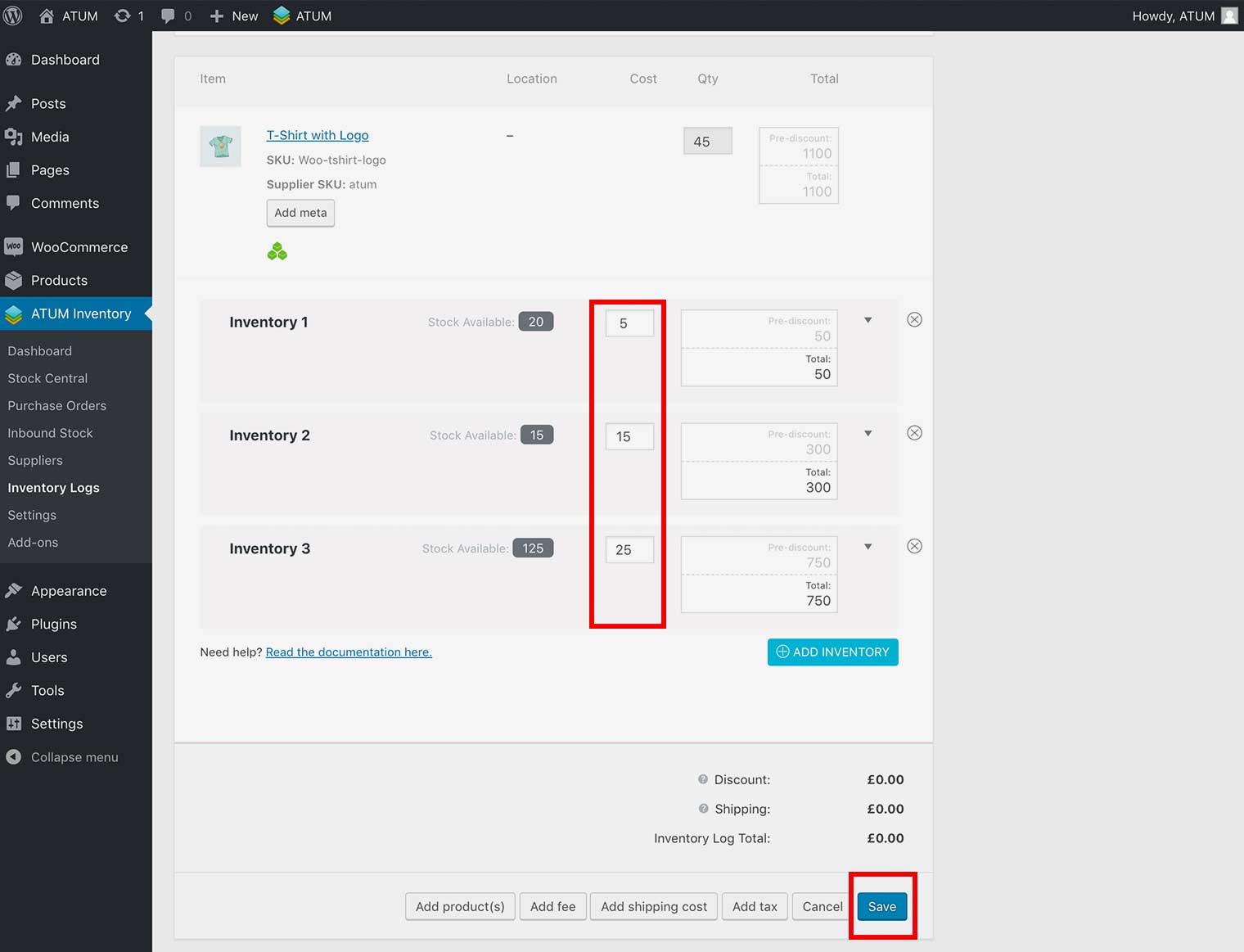
- Type the quantity you want to add in each inventory and click the Save button.
- To activate changes click Create or Update the PO at the top right.