Settings
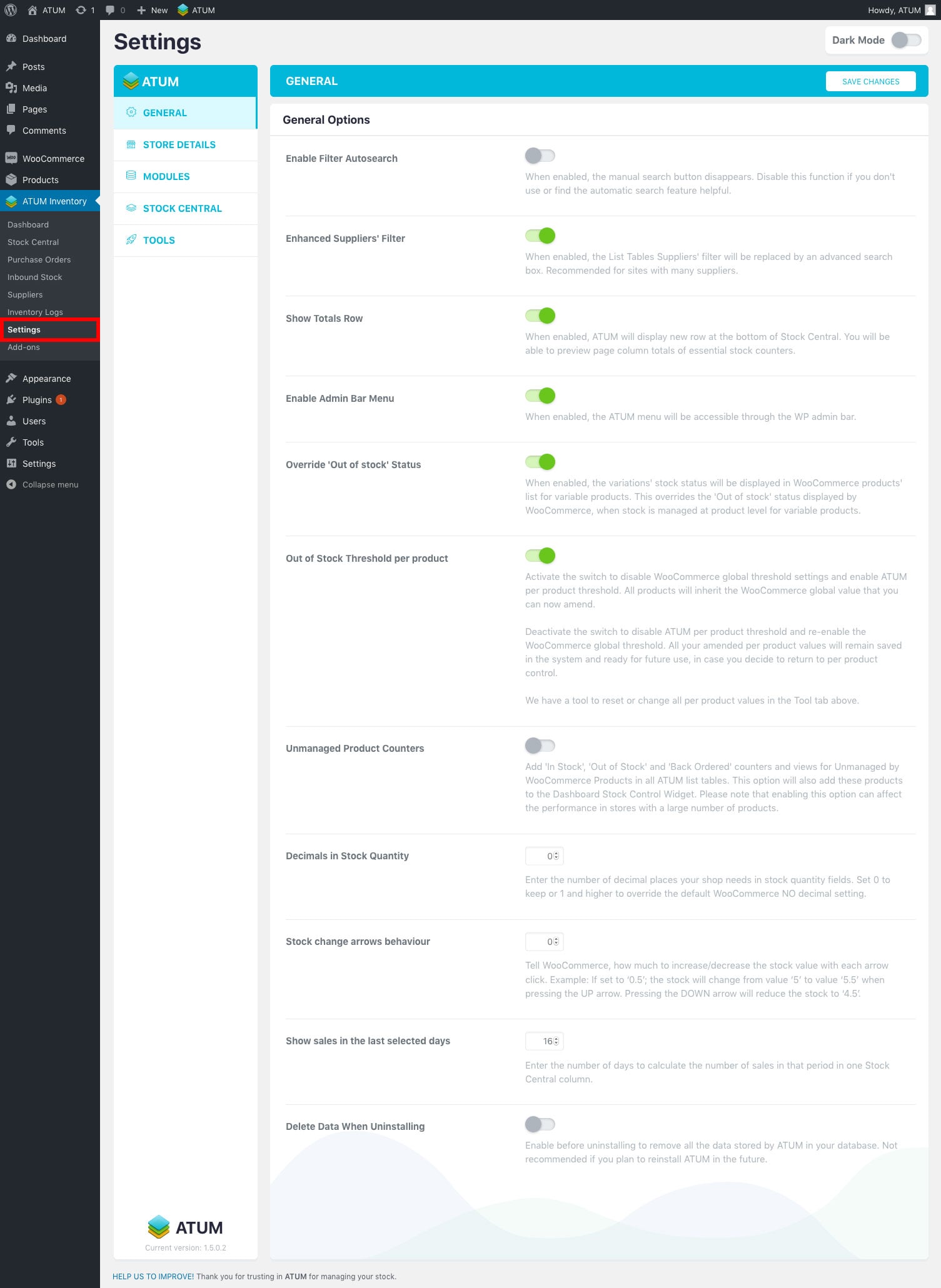
It’s easy to manage your ATUM settings. From your WordPress Dashboard, go to ATUM Inventory > Settings.
ATUM Settings has five sections: General, Store Details, Modules, Stock Central and Tools.
GENERAL
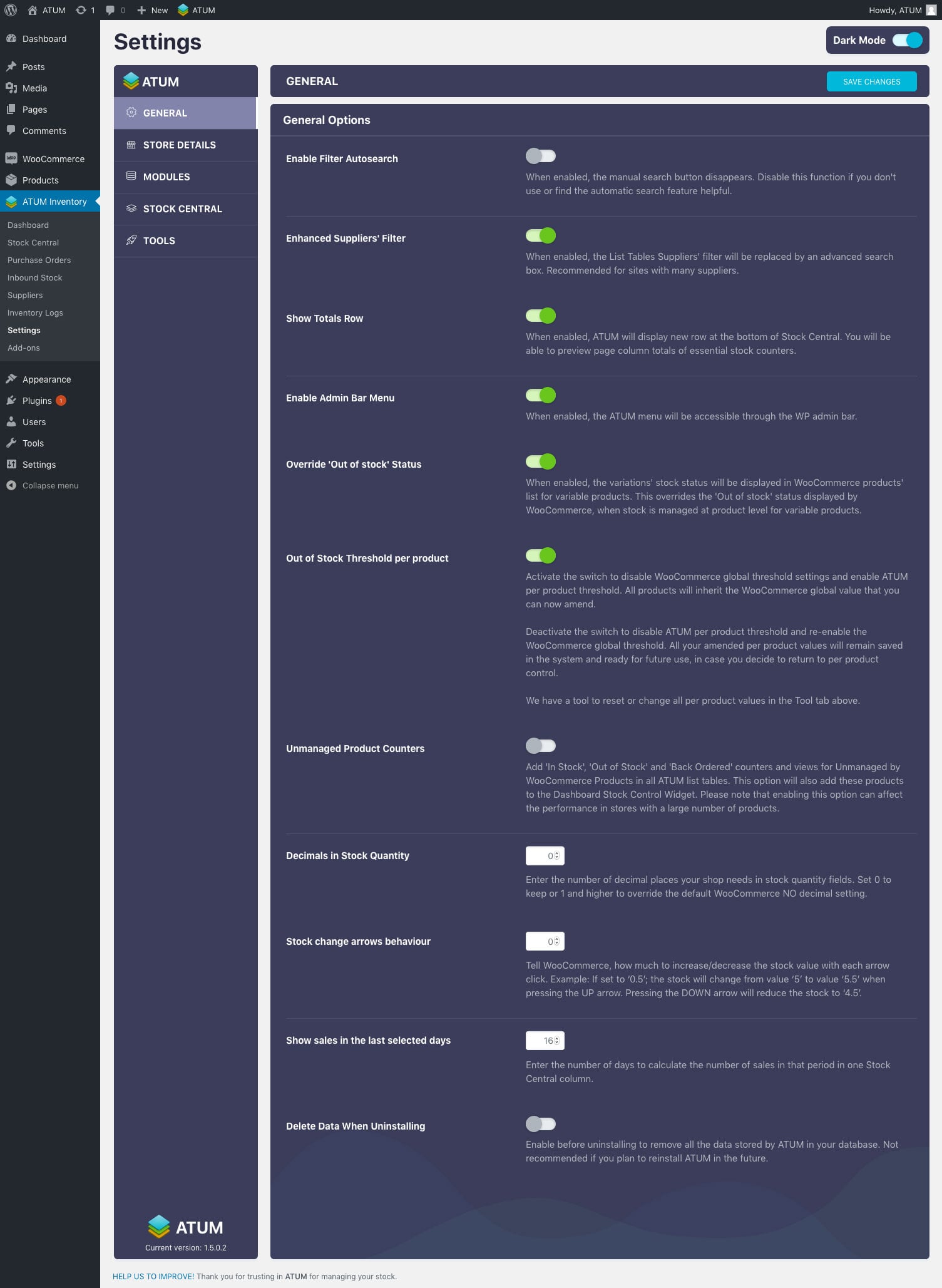
The General Options section contains the following fields:
- Enable Filter Autosearch: Enable this setting to remove the manual search button. You can disable this function if you don’t find the automatic search feature helpful.
- Enhanced Suppliers’ Filter: Enable this setting to replace the List Tables Suppliers’ filter with an advanced search box. We recommend this for sites with many suppliers.
- Show Totals Row: Enable this setting to display new totals row at the bottom of Stock Central. You will be able to preview page column totals of essential stock counters.
- Enable Admin Bar Menu: Enable this setting to access the ATUM menu via the WordPress admin bar at the top of the page.
- Override ‘Out of stock’ Status: Enable this setting to display the variations’ stock status in WooCommerce’s products list for variable products. This overrides WooCommerce’s ‘Out of stock’ status when stock is managed at the product level for variable products.
- Out of Stock Threshold per product: Enable this setting to disable WooCommerce global threshold settings and enable ATUM per product threshold. All products will inherit the WooCommerce global value that you can now amend.
- Unmanaged Product Counters: Enable this setting to Add ‘In Stock’, ‘Out of Stock’ and ‘Back Ordered’ counters and views for Unmanaged by WooCommerce Products in all ATUM list tables. This option will also add these products to the Dashboard Stock Control Widget.
- Decimals in Stock Quantity: Enter the number of decimal places for your stock quantity fields. Enter 0 if you do not want decimals or 1 or higher to override WooCommerce’s default NO decimal setting. The default for this field is 2.
- Stock change arrows behaviour: Tell WooCommerce, how much to increase/decrease the stock value with each arrow click. Example: If set to ‘0.5’; the stock will change from value ‘5’ to value ‘5.5’ when pressing the UP arrow. Pressing the DOWN arrow will reduce the stock to ‘4.5’.
- Show sales in the last selected days: Enter the number of days to calculate the number of sales in that period in one Stock Central column..
- Delete data when uninstalling: Enable this setting before uninstalling to remove all of your ATUM data in your database. We do not recommend this if you plan to reinstall in the future.
To enable a setting, move the button next to the module to the right.
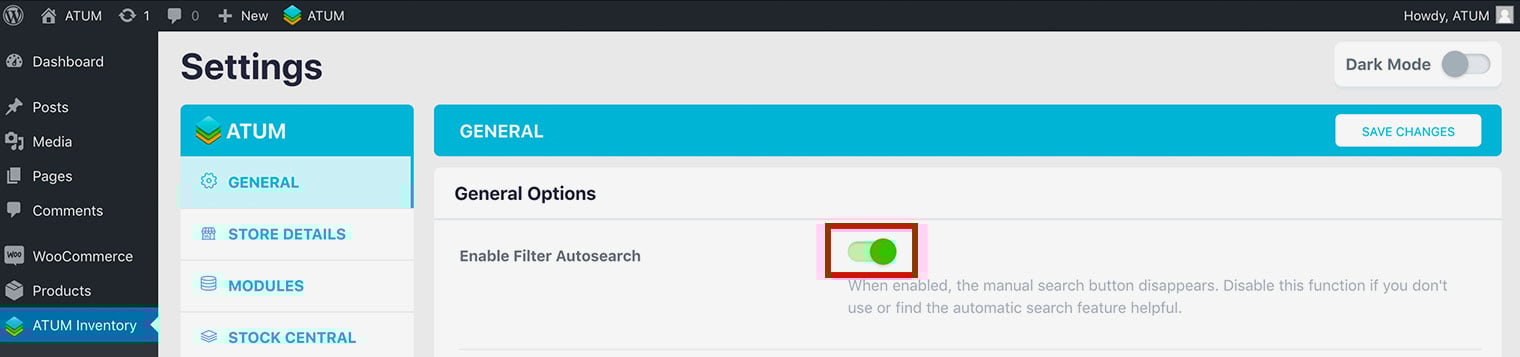
To disable a setting, move the button next to the module to the left.
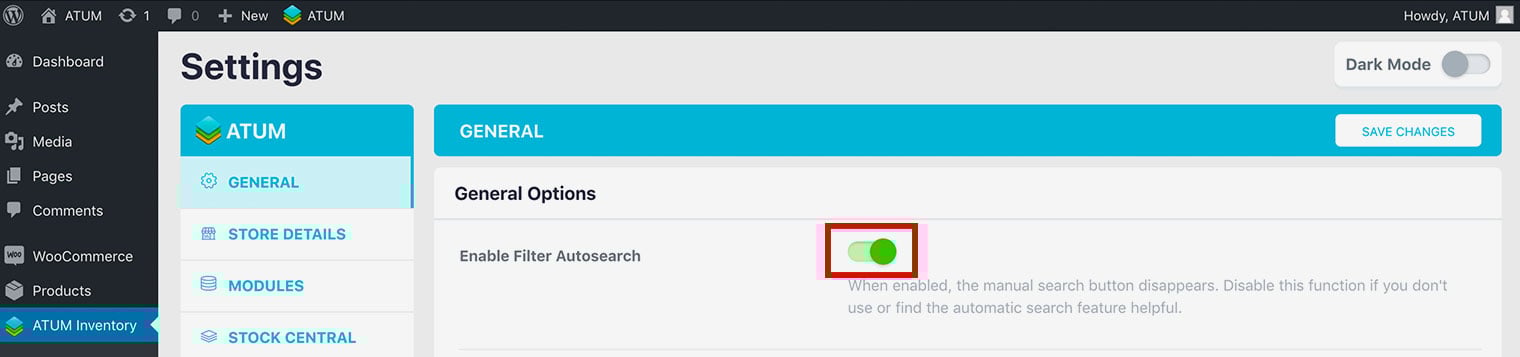
When you are done making any changes to these settings, click Update Settings at the top of the screen.
STORE DETAILS
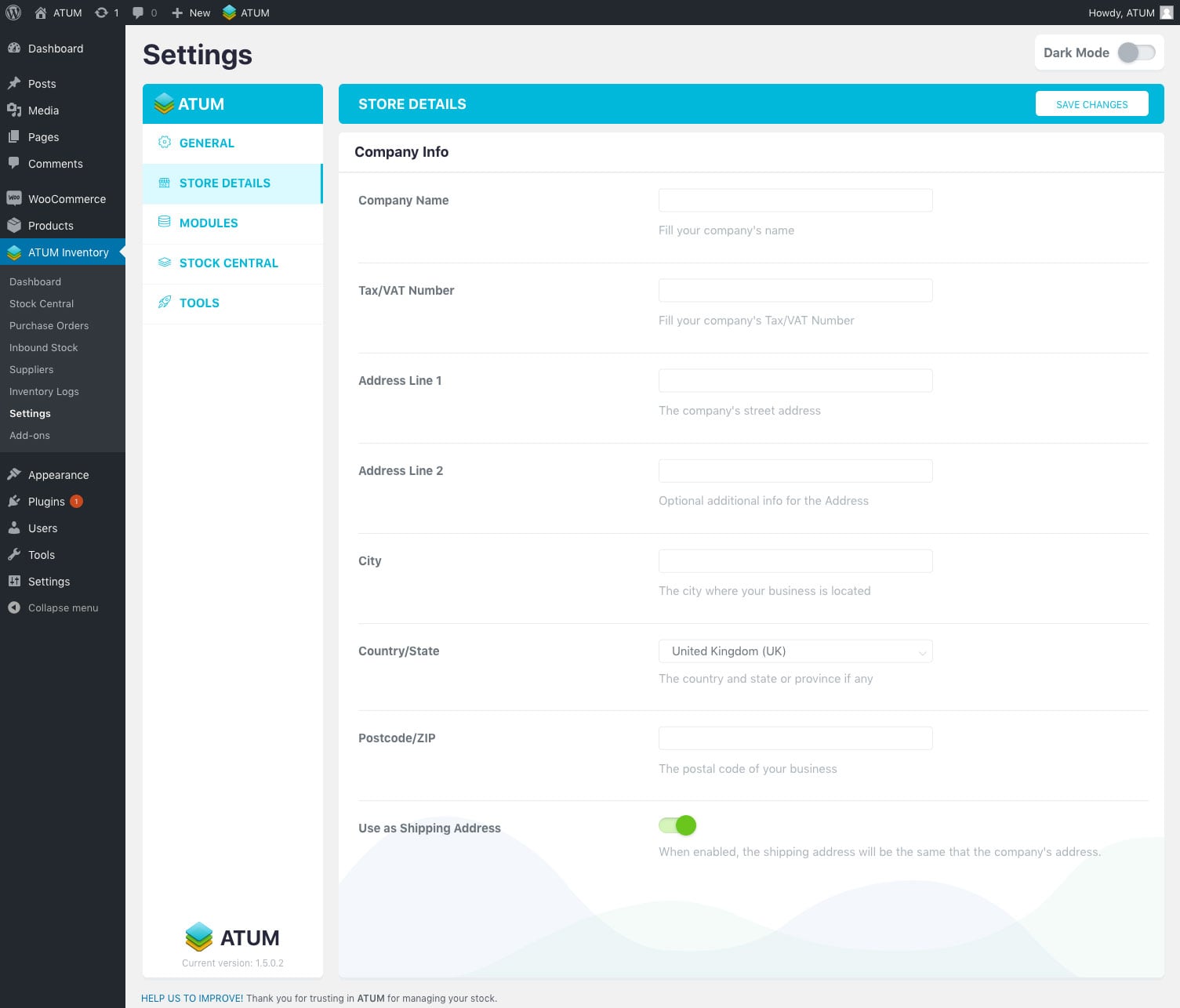
MODULES
The Module Manager lets you enable or disable any of ATUM’s modules.
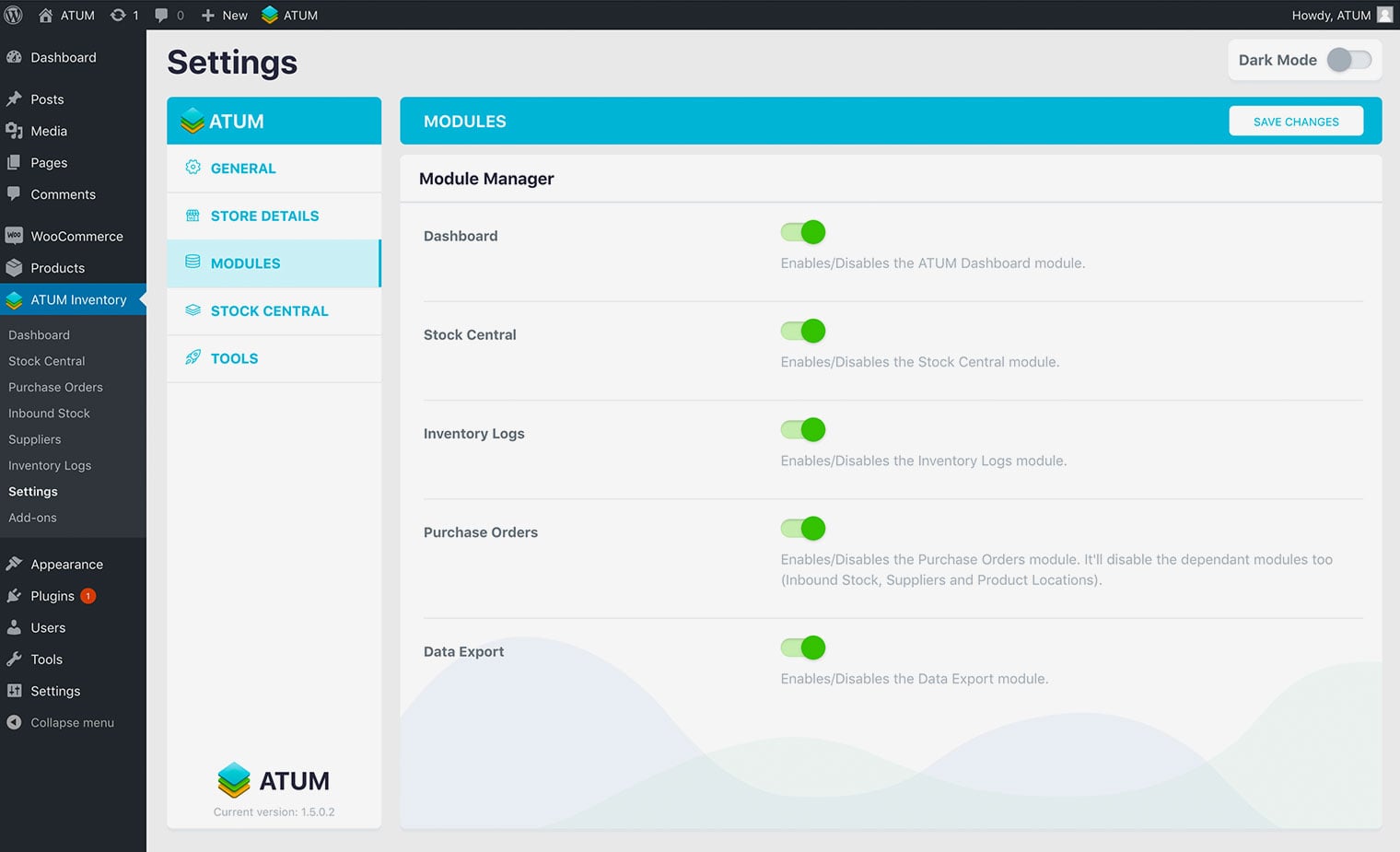
To enable a module, move the button next to the module to the right.
To disable a module, move the button next to the module to the left.
When you are done making any changes to these settings, click Update Settings at the top of the screen.
STOCK CENTRAL
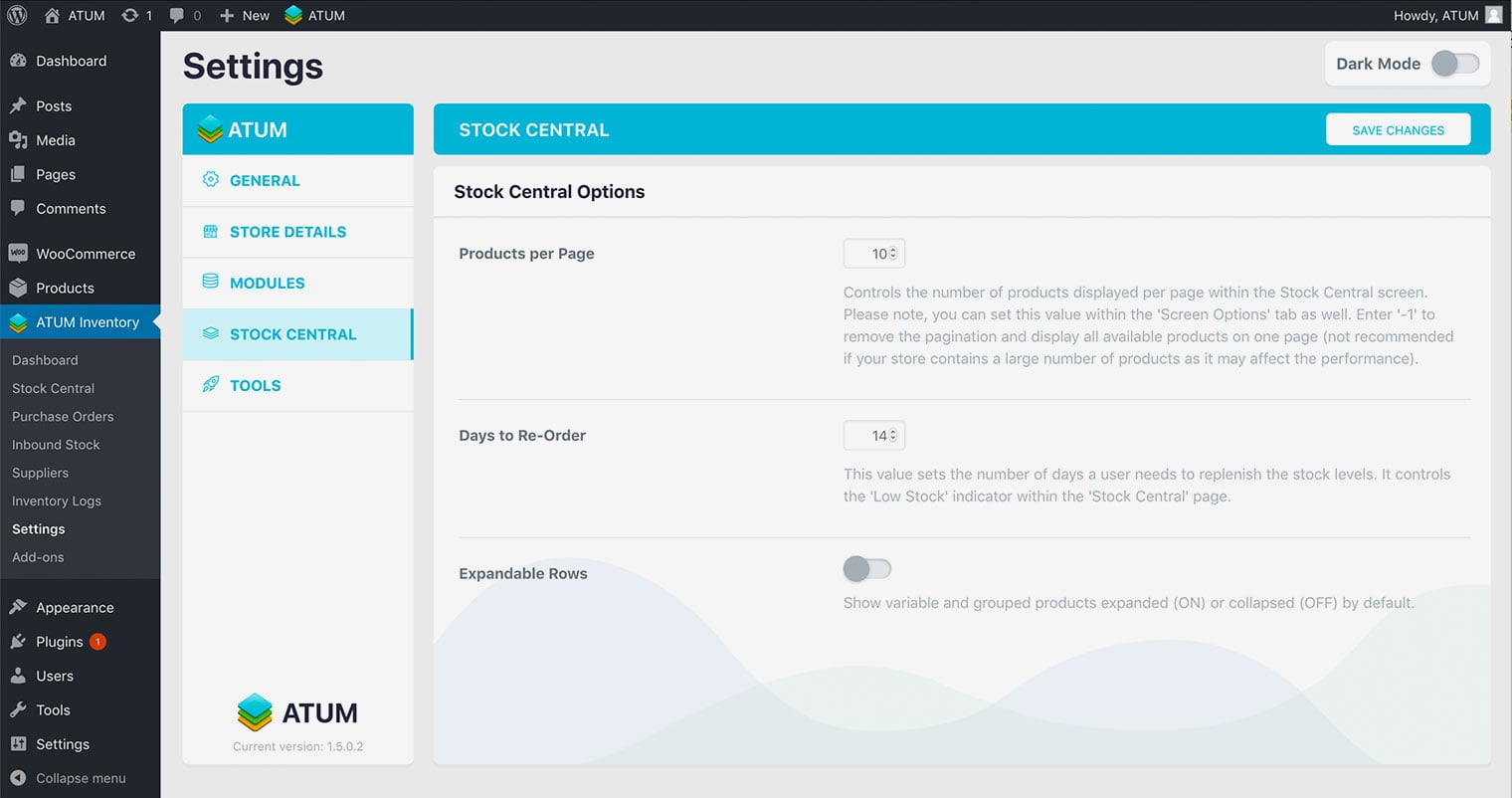
The Stock Central section contains four fields:
- Products Per Page: Allows you to control the number of products displayaed per page within the Stock Central module. You can also set this via the Screen Options at the top of the page. Enter -1 to remove pagination and display all available products on one page. We do not recommend this if your store contains a large number of products, as it may affect performance. The default for this field is 20.
- Days to Re-Order: Allows you to set the number of days you need to replenish the stock levels. It controls the Low Stock indicator in the Stock Central module. The default for this field is 14.
- Expandable Rows: Allows you to show variable and grouped products expanded (ON) or collapsed (OFF) by default.
When you are done making any changes to these settings, click Update Settings at the top of the screen.
TOOLS
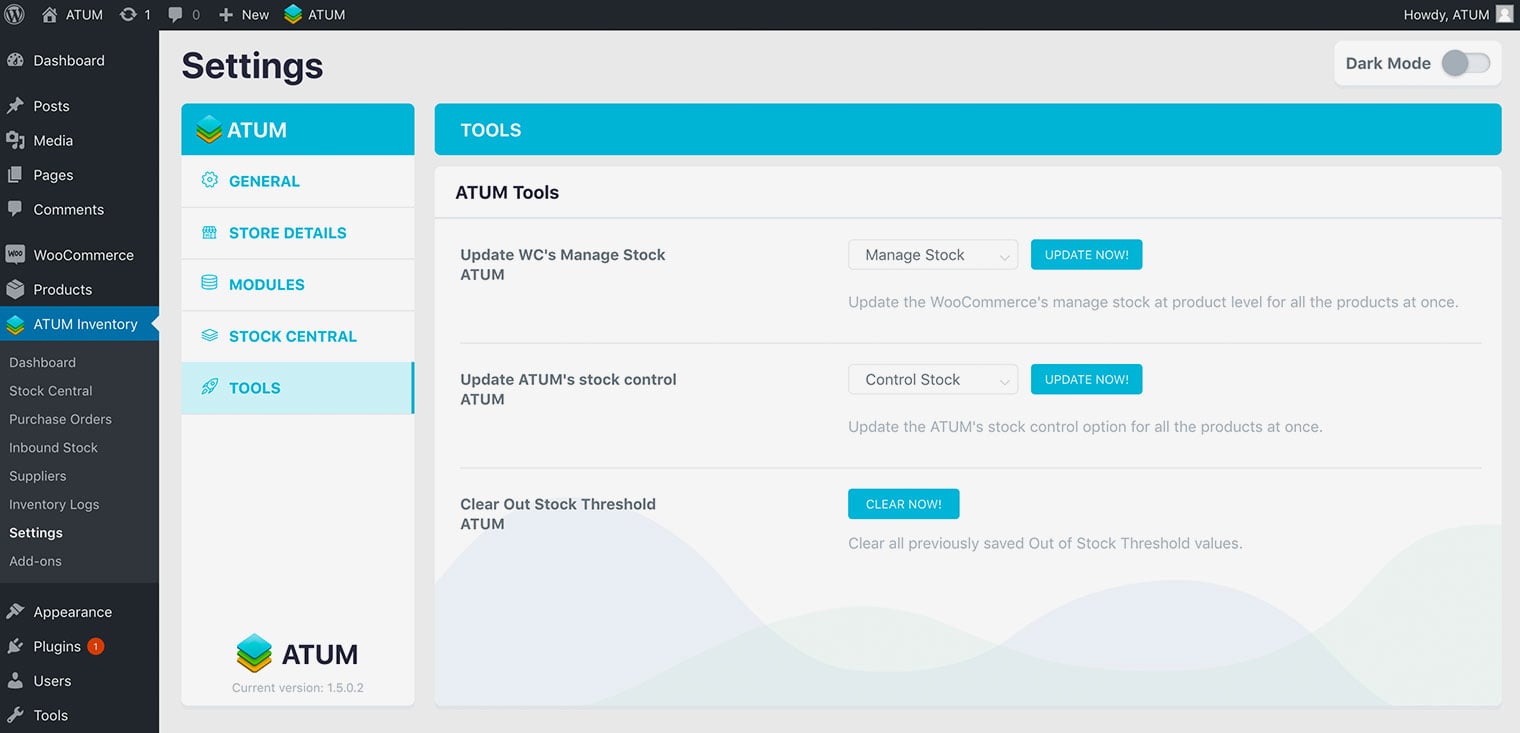
The Tools section contains:
- Update WC’s Manage Stock: Allows you to set the WooCommerce’s manage stock at product level for all the products at once.
- Update ATUM’s stock control: Allows you to set the ATUM’s stock control option for all the products at once.
- Clear Out Stock Threshold: Allows you to clear all previously saved Out of Stock Threshold values.
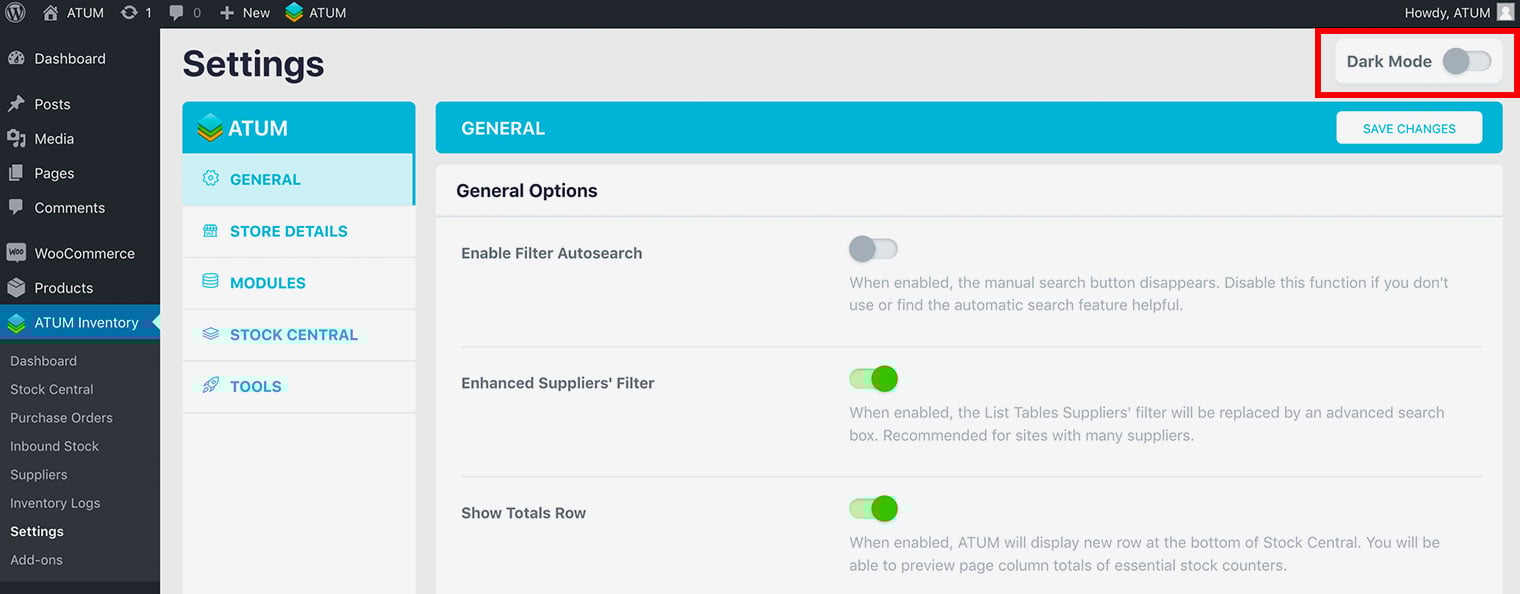
DARK MODE
To enable the dark mode, click the button located at the top right of the screen.