
EU VAT laws for digital goods changed on 1 January 2015, affecting B2C transactions only. VAT on digital goods must be calculated based on customer location, and you’re required to collect evidence of this via an IP address and/or Billing Address.
In addition, you need to set up VAT rates in your WooCommerce store to charge the correct amount. This guide shows you how to set up rates specific to Digital Goods.
If you’re only selling digital goods, VAT rates can be added under Standard Rates in WooCommerce.
If you’re selling/distributing both digital and regular products, you can create and use a new tax class, for example Digital Goods, and update them.
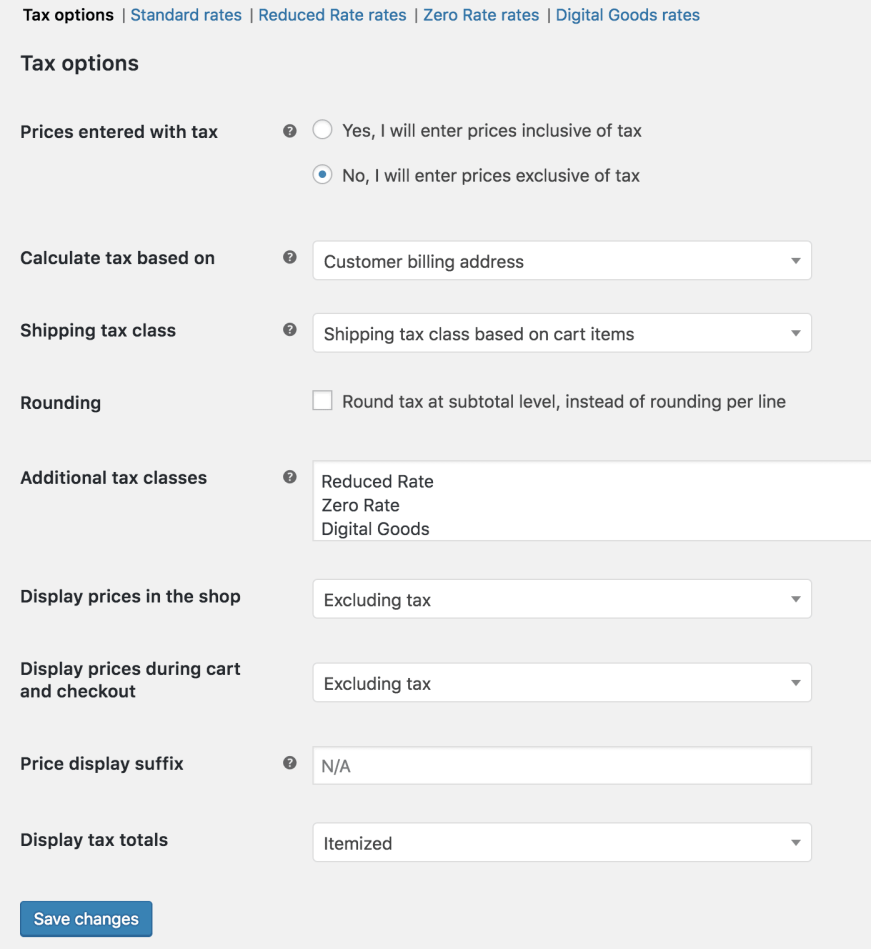
To set up EU VAT rates in a new tax class:
- Go to: WooCommerce > Settings > Tax.
- Select the Additional Tax Classes setting.
- Add a new tax class to the list, for example, Digital Goods.
- Save.
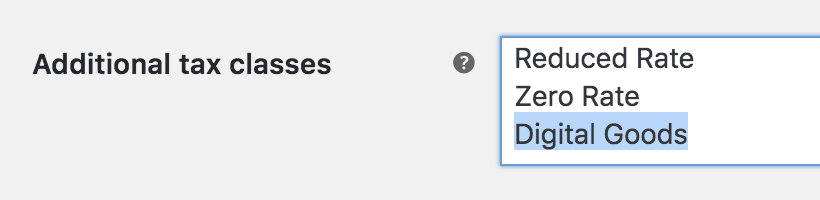 Once saved, you can begin assigning this tax class to Digital Goods, but first input the rates.
The next step is to input the EU VAT Rates into WooCommerce.
Look Up the Latest VAT Rates ↑ Back to top
The latest VAT rates can be found at the Europa website in a PDF document. If these rates change, you need to update the VAT rates for your store.
Input Rates ↑ Back to top
- Go to: WooCommerce > Settings > Tax > Digital Goods (now a new tab after you created a new tax class).
- Enter rates for all EU member states. See our guide on Setting Up Tax Rates in WooCommerce.
At the time of writing, they were:
| Country Code | Rate % |
|---|---|
| GB | 20.0000 |
| BE | 21.0000 |
| BG | 20.0000 |
| CZ | 21.0000 |
| DK | 25.0000 |
| DE | 19.0000 |
| EE | 20.0000 |
| EL | 23.0000 |
| ES | 21.0000 |
| FR | 20.0000 |
| HR | 25.0000 |
| IE | 23.0000 |
| IT | 22.0000 |
| CY | 19.0000 |
| LV | 21.0000 |
| LT | 21.0000 |
| LU | 17.0000 |
| HU | 27.0000 |
| MT | 18.0000 |
| NL | 21.0000 |
| AT | 20.0000 |
| PL | 23.0000 |
| PT | 23.0000 |
| RO | 24.0000 |
| SI | 22.0000 |
| SK | 20.0000 |
| FI | 24.0000 |
| SE | 25.0000 |
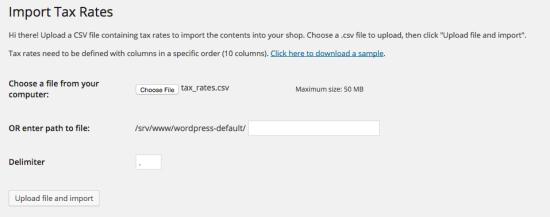
Alternatively, if you have a CSV file in the correct format, you can import the VAT rates to save time. Here are the above rates in CSV format with tax class Digital Goods: tax_rates.csv
To import this file, click the ‘Import Rates’ button on the tax input page, and an importer will appear.
Once you’ve uploaded and imported or input your rates, you should see a table similar to this:
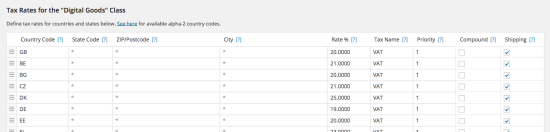
With EU VAT rates set up, users buying a product with the Digital Goods tax class are charged tax based on their location, not the store location.
Assigning the Tax Class to Products ↑ Back to top
To apply this tax class to digital products in WooCommerce:
- Go to: Products > Products.
- Edit a product.
- Select Digital Goods from the Tax Class dropdown.
- Save.
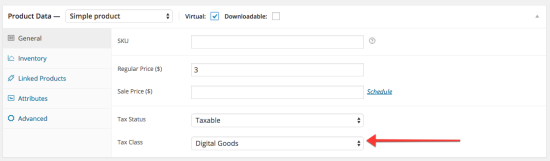
You can also bulk-edit products:
- Go to: Products > Products.
- Tick the box to the left of each of the products you want to bulk-edit.
- Select Edit from the bulk actions dropdown.
- Click Apply.
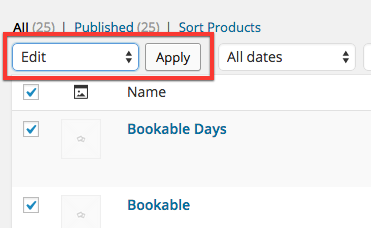
Bulk Actions - Set the Tax Class in the dropdown box.
- Click Update.
Have a question or need assistance? Get in touch with a Happiness Engineer via the Help Desk.